Book detail
Select a book in the list to open its detail page. The page shows the location of each copy, the reading status of the household, the notes, and the details of each copy.
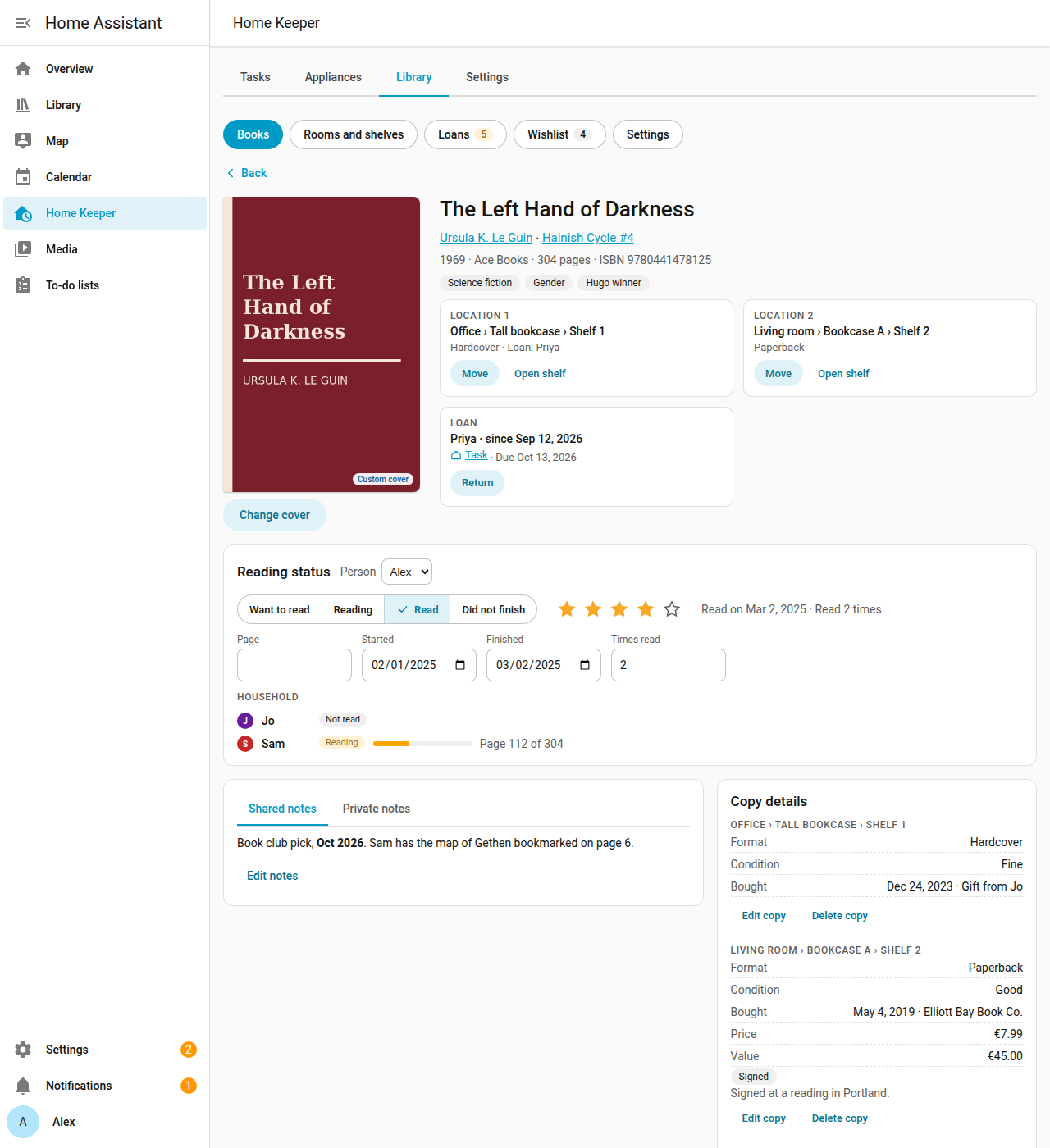
Location and loan
Location shows the room, the bookcase and the shelf of each copy. Select Open shelf to open the books of that shelf. If a copy is lent out, Loan shows who has it and the due date. Select Return when the book comes back.
Reading status
Set your reading status in Reading status:
- Want to read
- Reading
- Read
- Did not finish
Reading with no start date sets the start date to today. Read with no finished date sets the finished date to today, and adds 1 to the read count.
Set a rating of 1 to 5 stars and the page that you are on. You can also change the start date and the finished date. An admin can set the status of each person. Household shows the reading status of the other people who share their reading.
Notes
- Shared notes are for the whole household.
- Private notes are for your person. Only you and the admins read them.
Both support Markdown. Select Edit notes to change them.
Cover
The library downloads the cover from Open Library when it adds a book.
- Select Change cover to upload a photo. The library accepts a JPEG, PNG or WebP file of up to 10 MB. The stored cover is a JPEG of at most 1200 px.
- Select Use Open Library cover to go back to the cover from Open Library.
Copies and value
Copy details shows the format and the condition of each copy. It also shows the date and the source of the purchase, the price and the value, and the signed and first edition marks. Only admins see the price, the value and the source. The currency is the currency of the integration.
- Select Add copy to add 1 more copy, on a shelf.
- Select Edit copy, Move or Delete copy on a copy.
Change the book
- Edit: change the details of the book.
- Lend: lend a copy (Loans).
- Update from Open Library: fill the empty details from Open Library. The library keeps each detail that you changed.
- Send to Open Library: add a book that Open Library does not have (Send books to Open Library). A banner at the top shows this action. Select Not now to hide the banner for this book.
- Delete: delete the book with its copies, its reading status and its loans.
Phone
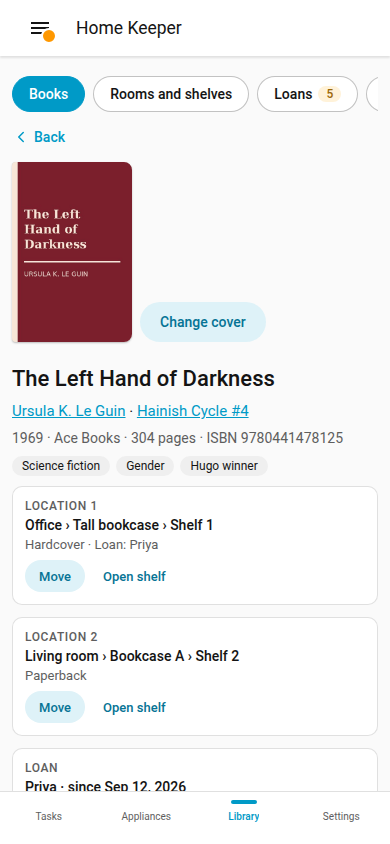
The detail page works at phone width.