Send books to Open Library
The library supports a send of a book to Open Library if Open Library does not have the book. Open Library is the catalog that gives the library its book details and covers. A book that you send is then in the catalog for other readers. The library links your book to the new Open Library record.
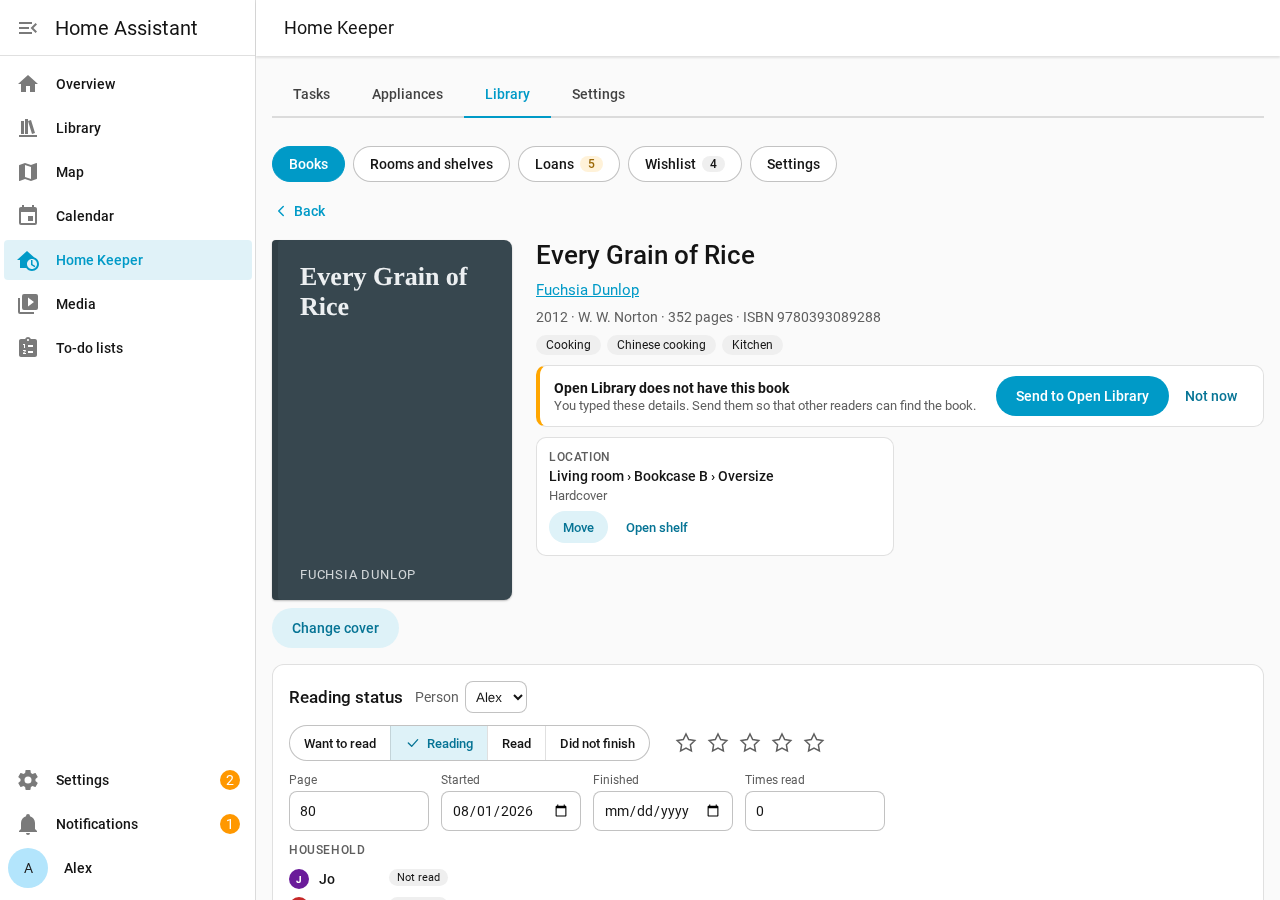
Only an admin can connect an account and send books. Each send is for 1 book, and it starts only when you select Send.
Books that Open Library does not have
The library looks up each new book on Open Library. If the lookup finds no book, the book gets the mark Not on Open Library. A lookup that fails because Open Library is not available does not set this mark.
- On the Books page, select the Not on Open Library filter to see the list.
- On the page of 1 of these books, a banner shows Open Library does not have this book.
- After you add a book by ISBN, a message tells you if Open Library does not have it.
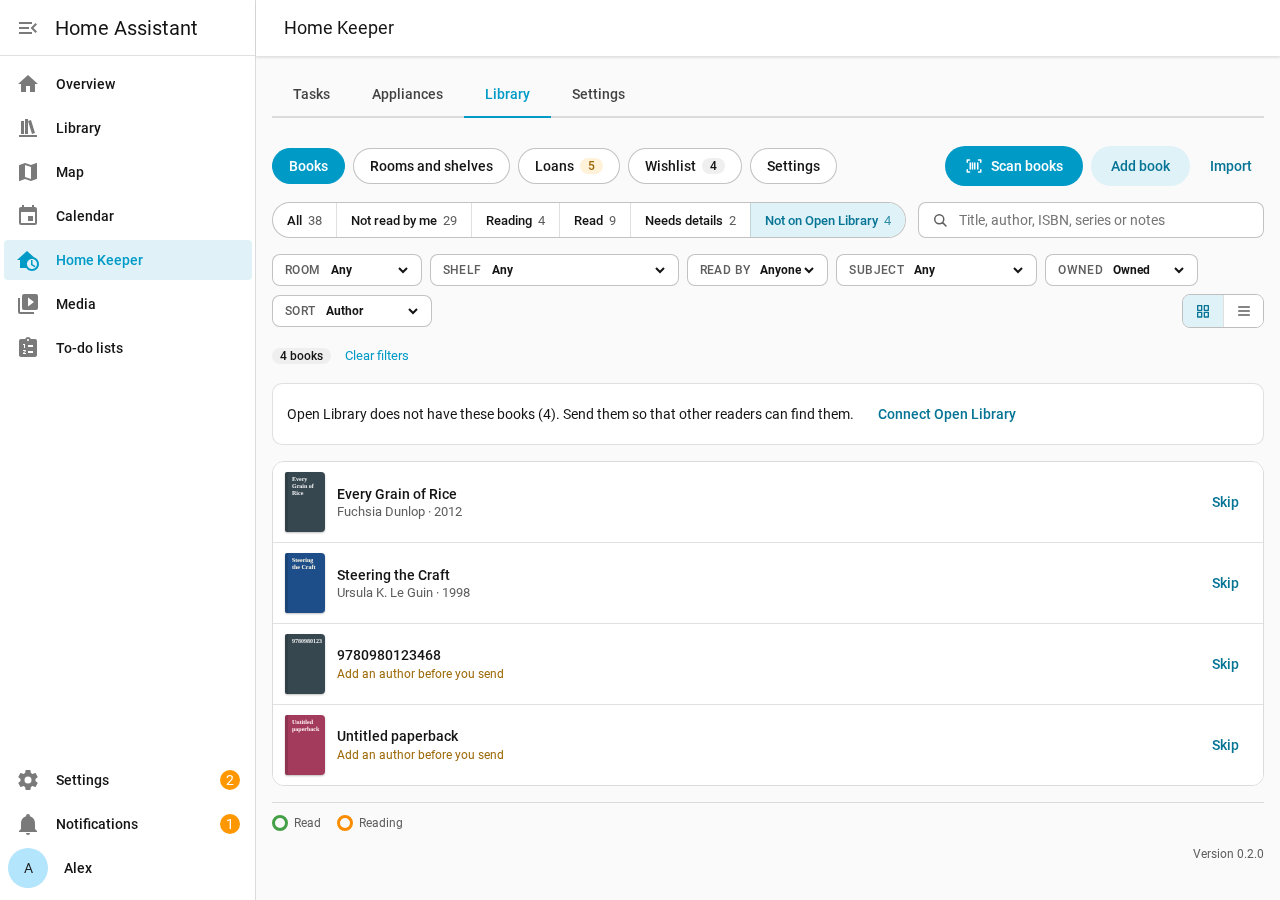
To remove a book from the list, select Skip in the list or Not now on the banner. The book page still shows Send to Open Library in the actions at the bottom.
Connect an Open Library account
Open Library adds a book only for a signed-in account. The library signs in with the 2 S3 keys of your Archive.org account. An Open Library account is also an Archive.org account.
- Sign in at archive.org with your Open Library account.
- Open archive.org/account/s3.php and copy the access key and the secret key.
- In the Library tab, open Settings.
- In Open Library account, paste the 2 keys and select Connect Open Library.
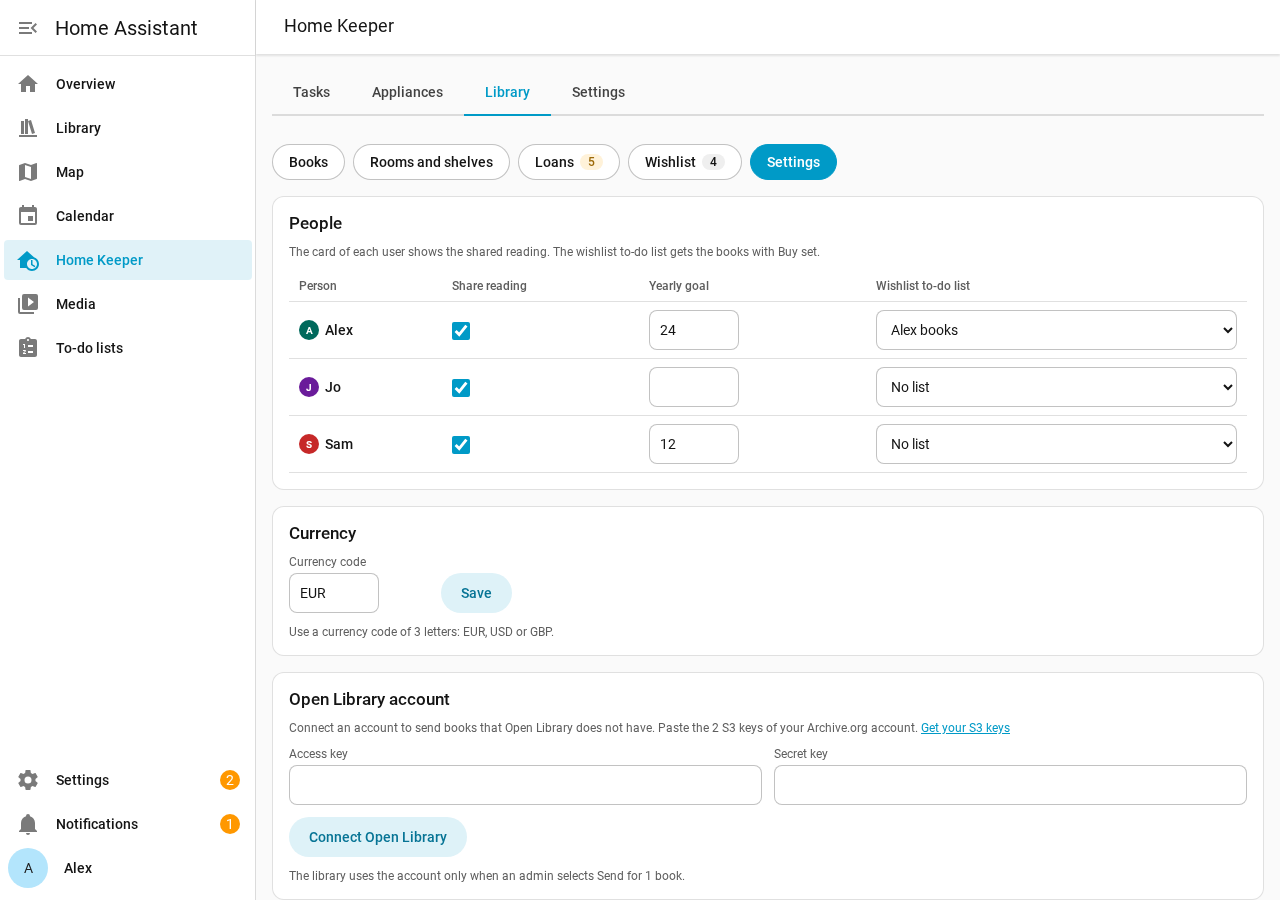
The library checks the keys with 1 sign-in. Then the card shows Connected as and the user name. You can also connect the account in the options of the integration, at Settings > Devices & services > Home Keeper Library > Configure.
The keys stay in the config entry of Home Assistant. No reply, event or diagnostics file shows them. To remove the keys, select Disconnect. If you revoke the keys on Archive.org, a send fails and tells you to connect the account again.
Send a book
- Open the book, and select Send to Open Library on the banner.
- Check the details in the dialog. The title and the first author always go.
- Clear the publisher, the publish date or the ISBN if you do not want to send it.
- If the book has a custom cover, select Cover to send your photo too.
- Select Send.
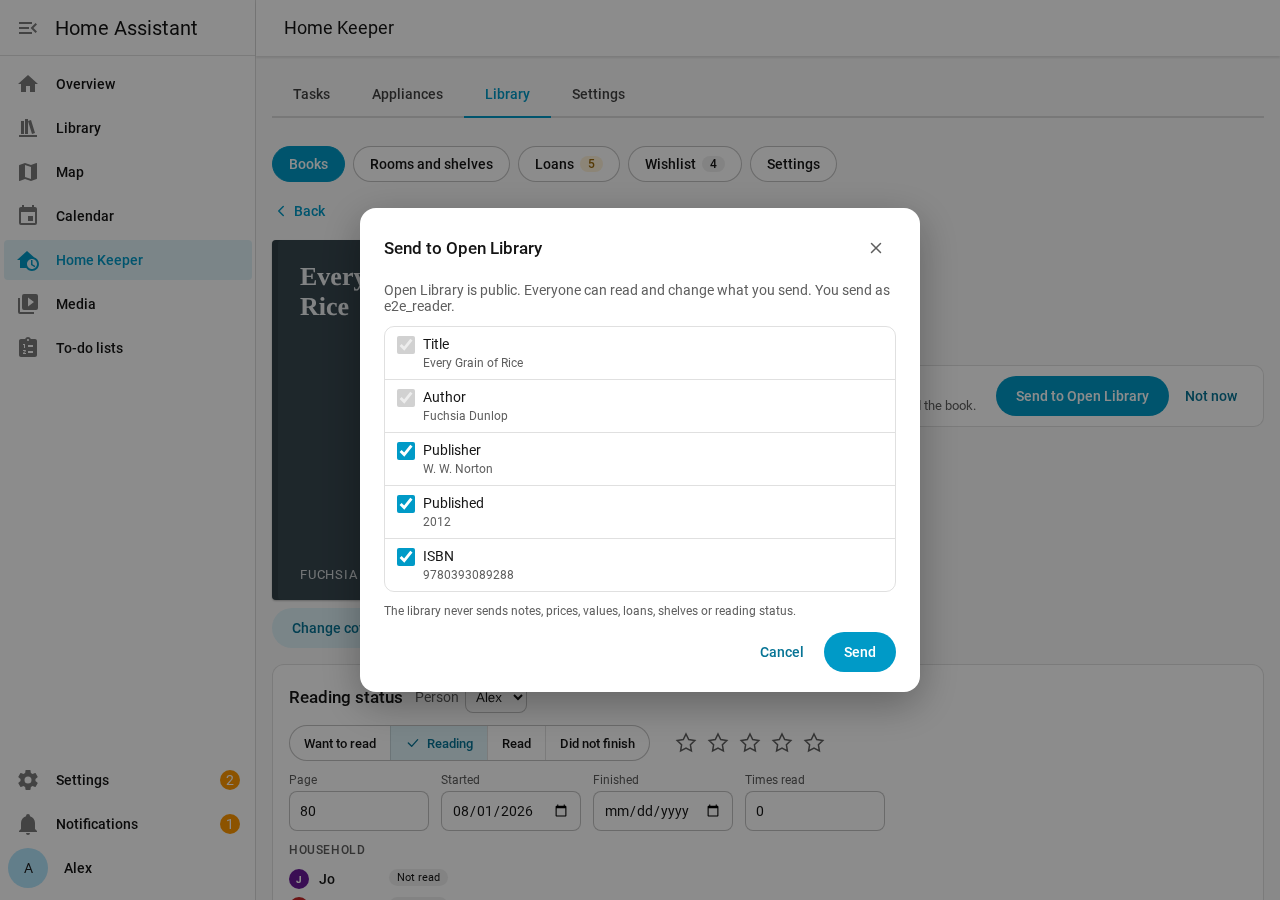
The library never sends notes, prices, values, loans, shelves or reading status. Open Library is public, so everyone can read and change what you send.
After the send, the dialog shows the key of the new Open Library edition. The library links the book and fills its empty details from Open Library. Your details stay as you typed them.
The "Add a book" form of Open Library takes only these 5 details. Select Add more details on Open Library to add the subtitle, the pages, the language and the other details on the edit page of the new record.
If Open Library has the book
Before the send, the library looks up the ISBN again. Open Library also checks the details when it gets them. If Open Library has the book, the dialog shows the key of that edition.
- Select Compare to open the edition on Open Library.
- If it is your book, select Link to and the key. The library links your book to that edition.
Open Library can find more than 1 work that can be the book. Then it asks you to pick 1 on its website, so the send stops there. Add the book on the Open Library website.
Rules for a send
- A book needs an author before you send it. The list shows Add an author before you send on a book with no author.
- If the cover upload fails, the book is still added. The dialog tells you to add the cover on the Open Library page.
- The library sends 1 book at a time. Open Library asks for a bot account for automatic or bulk edits.
Phone
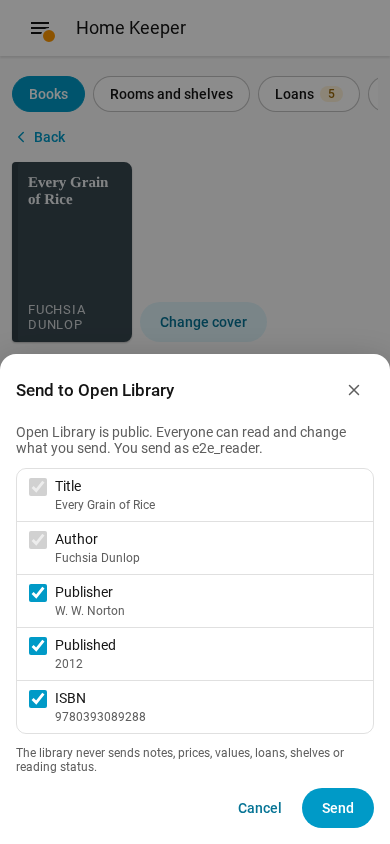
The banner, the list, the dialog and the account card work at phone width.
Automations
The services send_to_catalog, link_catalog, skip_catalog and
disconnect_catalog do the same steps. They are admin-only. See
Services and events.