Scan books
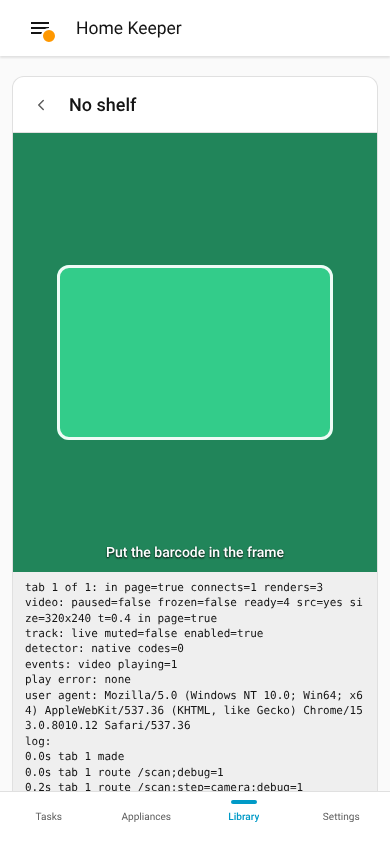
The library supports a scan of the ISBN barcode on the back of each book with the camera of a phone. Each scan adds the book to the shelf that you select, with the details and the cover from Open Library. Use it to fill a shelf in 1 pass.
Scan a shelf
- Open the Library tab on a phone, and select Scan books. Or select Scan on a shelf in Rooms and shelves.
- Select the room and the shelf.
- Select the method Scan barcodes, then select Start scan to open the camera.
- Put the barcode of a book in the frame. The result shows under the camera.
- Do step 4 again for each book on the shelf.
- Select Next shelf to go on with the next shelf, or Done to see the summary.
If the light is low and the phone has a torch, select Light.
Enter an ISBN
Use Enter ISBN for a book with no barcode, or on a computer with no camera.
- Select the method Enter ISBN.
- Type the ISBN-10 or the ISBN-13, and press Enter.
The library accepts an ISBN with or without hyphens. It checks the check digit, and shows This is not a valid ISBN. for a typing error.
Results
| Result | What it means |
|---|---|
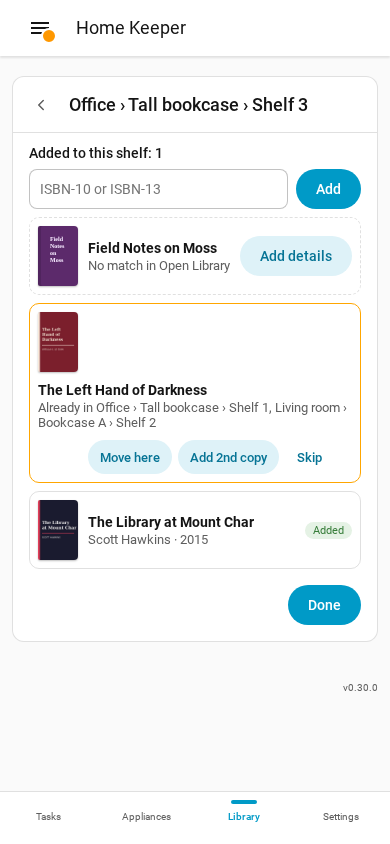
| Added | The book and a copy on this shelf are in the library. |
| Already in place | The library has a copy of the book on another shelf. |
| No match | Open Library has no book with this ISBN. The scan asks for the title. |
For a book that is already in the library, select 1 of these:
- Move here: move the copy to this shelf.
- Add 2nd copy: add 1 more copy on this shelf.
- Skip: change nothing.
Books with no match
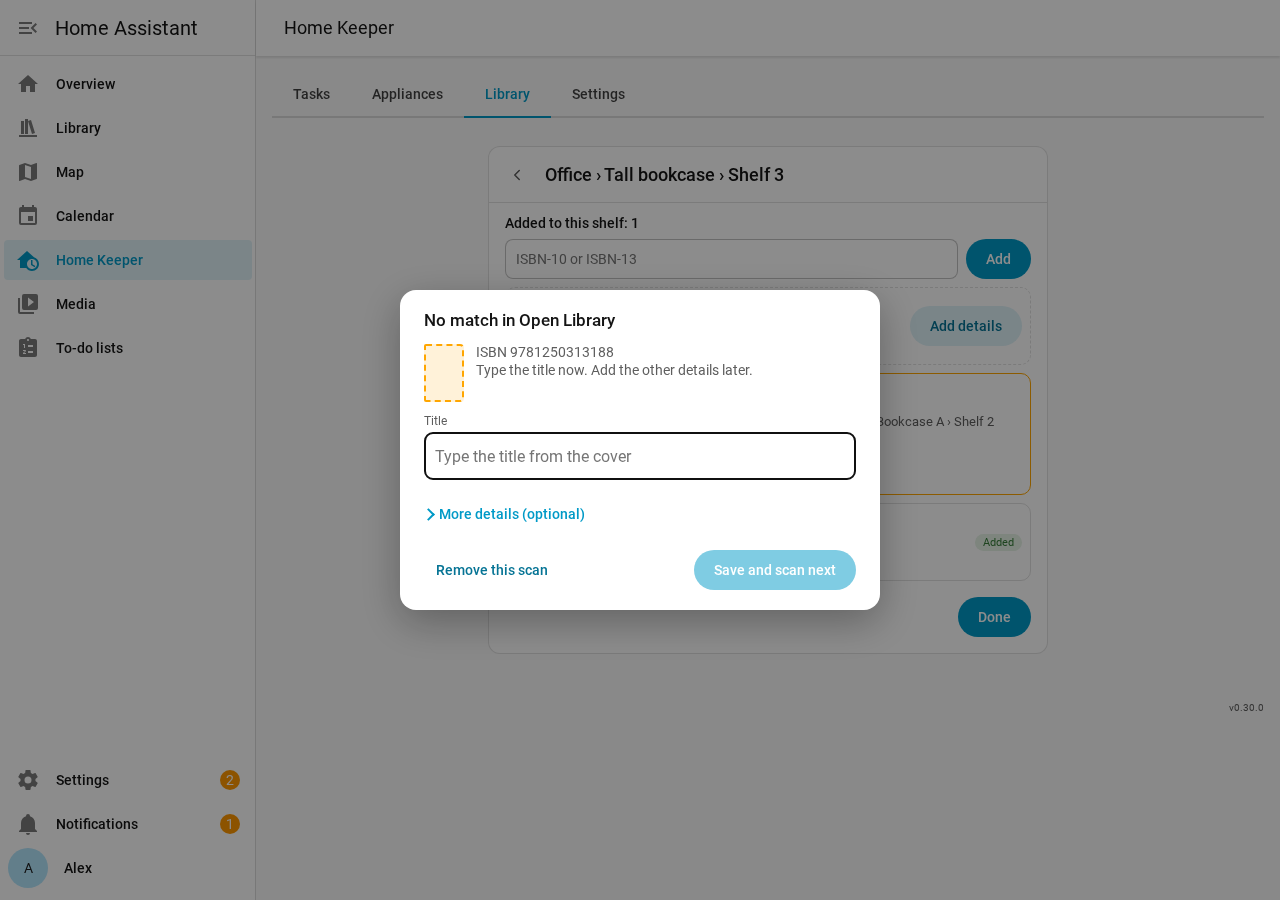
If Open Library has no book with the ISBN, the scan stops and asks for the title. Then you can find each of these books on the shelf later and add the other details.
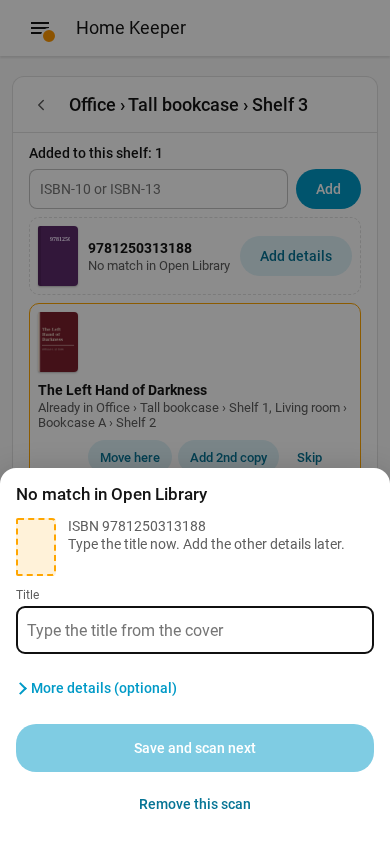
- Type the title from the cover of the book.
- Select Save and scan next. The scan continues.
The camera reads no barcode until you select Save and scan next or Remove this scan.
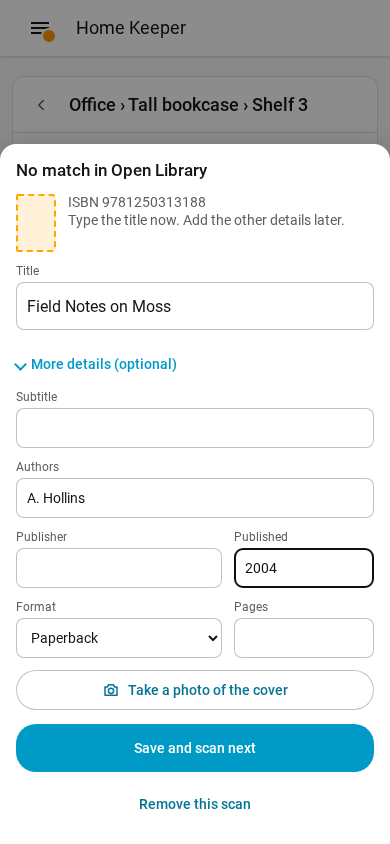
To add more details now, select More details (optional). These fields show:
- Subtitle
- Authors
- Publisher
- Published
- Format
- Pages
- Take a photo of the cover
If you scanned the wrong barcode, select Remove this scan. The library deletes the book and its copy.
The book keeps Needs details. To add the other details later, open the book and select Add details.
If Open Library does not answer, the library saves the book with its ISBN and tries again later. The book shows Needs details until the details arrive.
Summary
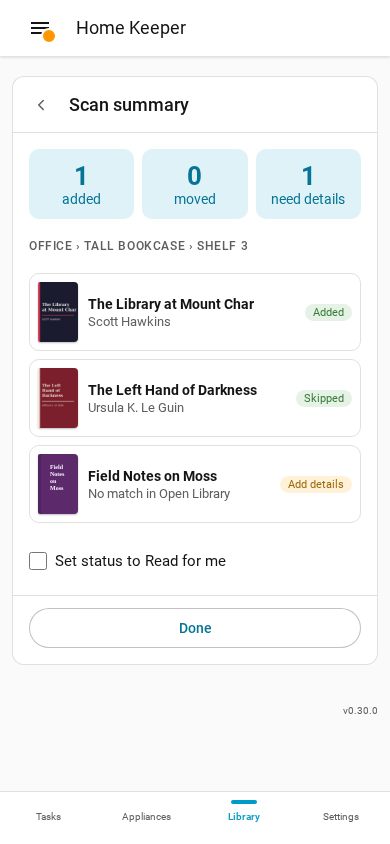
Done shows the summary of the scan: the books that the scan added and moved, and the books that need details. Select Set status to Read for me to set the status Read for your person on each book that the scan added or moved.
Borrowed books
On the Loans page, select Scan borrowed books to scan books that you borrow, such as library books. Each scan adds a loan with no copy.
Camera and HTTPS
The browser gives the camera only to a page with an HTTPS address. On an http://
address, Scan barcodes shows the message The camera needs HTTPS. You cannot start
a camera scan there. Select Enter ISBN to add books without the camera.
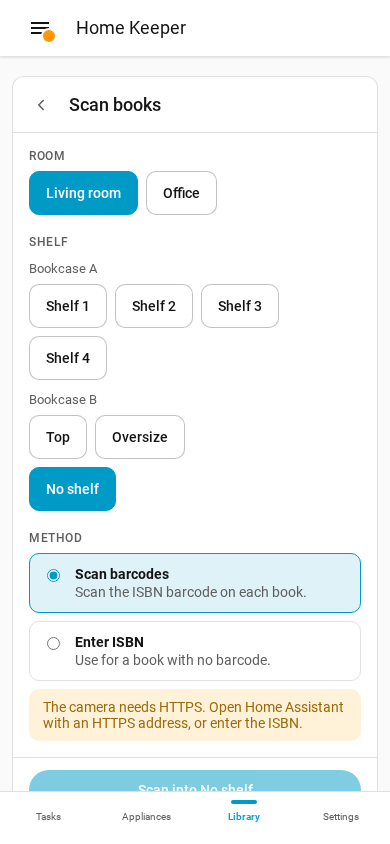
To use the camera, open Home Assistant with an HTTPS address, such as Home Assistant Cloud or a reverse proxy with a certificate. The Home Assistant phone app uses the internal URL on your home network and the external URL away from home. If the camera works only away from home, set the internal URL in the app to an HTTPS address too.
If the browser asks for the camera, allow it. If the browser cannot read barcodes, the library loads a barcode reader of its own the first time.
When the camera stops
If the camera picture stops during a scan, the camera shows The camera stopped. Tap to start it again. Tap the picture to continue the scan. The results that you scanned stay.
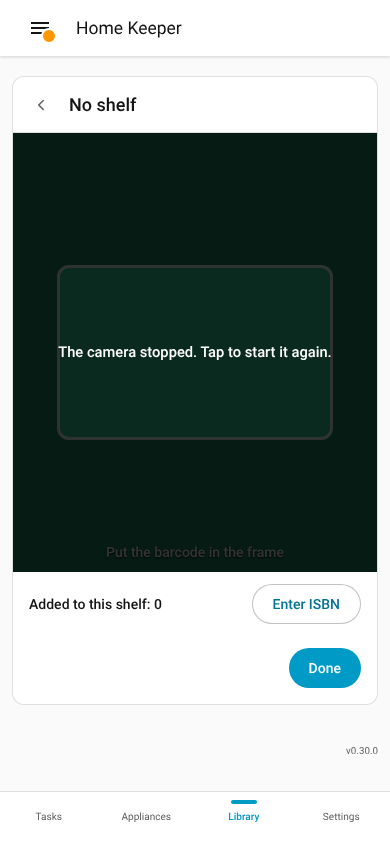
In the Home Assistant app for Android, the camera can stop after each scan. To prevent this, open Settings > Companion app in the app and turn on Autoplay videos.
If the camera stops again and again, open the camera debug view and send a screenshot of
it with your bug report. Add ;debug=1 to the end of the scan address:
/home-keeper/library/scan;debug=1. The Home Assistant app has no address bar, so put
this address in a link on a dashboard. A Markdown card can show the link:
[Scan debug](https://github.com/prestomation/ha-home-keeper-library/blob/main/docs/guide/library/home-keeper/library/scan;debug=1). The debug view shows the camera state
and the last camera events under the picture.