Logging completions
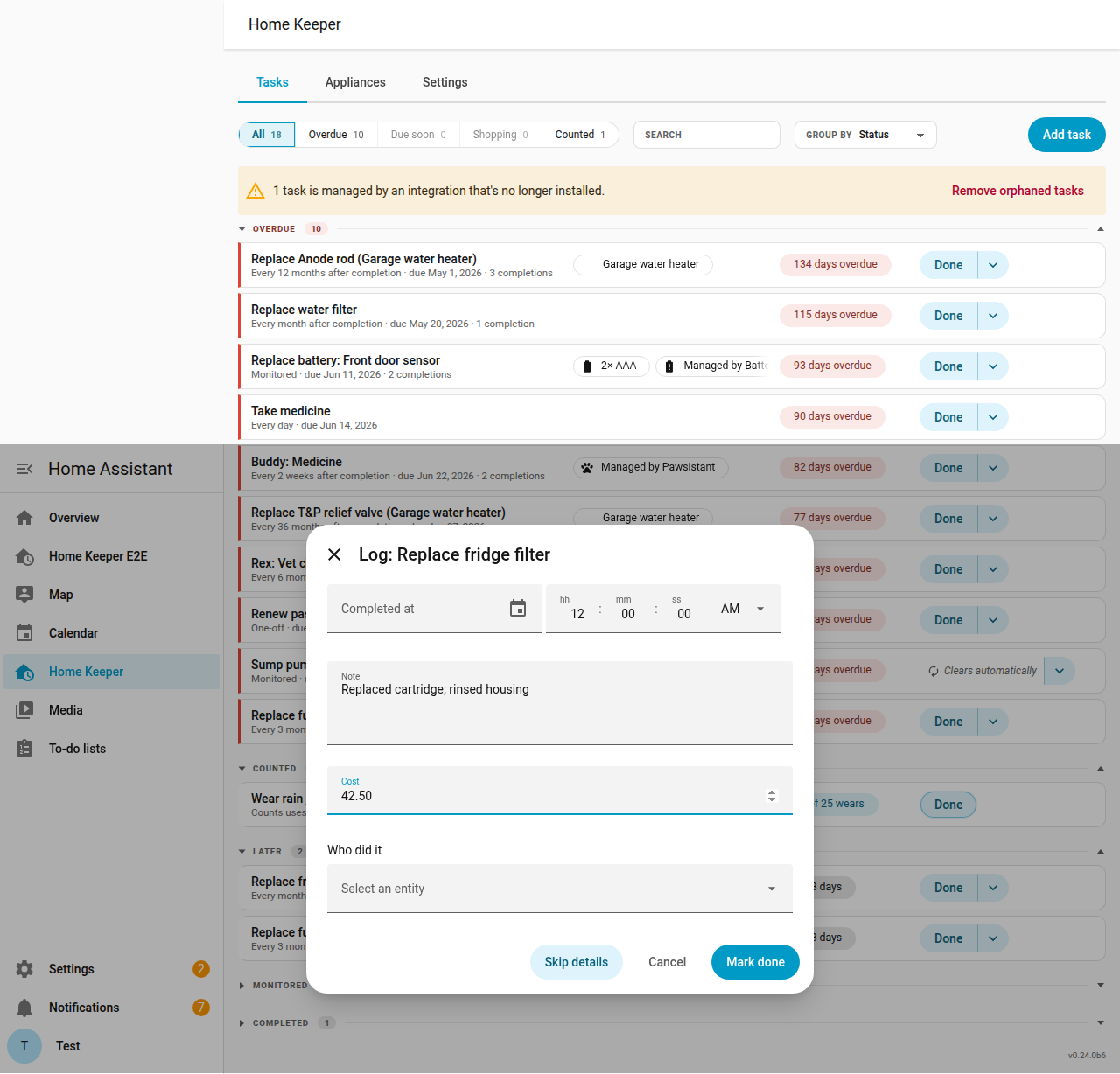
Home Keeper supports per-completion detail on a task. The default is a 1-tap Done. This is useful for a maintenance log of a task's cost and notes.
A completion can record:
- a free-form note
- a cost
- a photo
- who completed it, a Home Assistant
personentity
A task sets its capture mode in the On completion field:
- One-tap done is the default, with no dialog.
- Ask for details (optional) opens a dialog with the completion fields, all optional. A Skip details button completes the task without them.
- Require details opens the dialog and blocks Done until a user fills the required fields.
The dialog uploads a photo through Home Assistant's image store. The who
field lists the person entities.
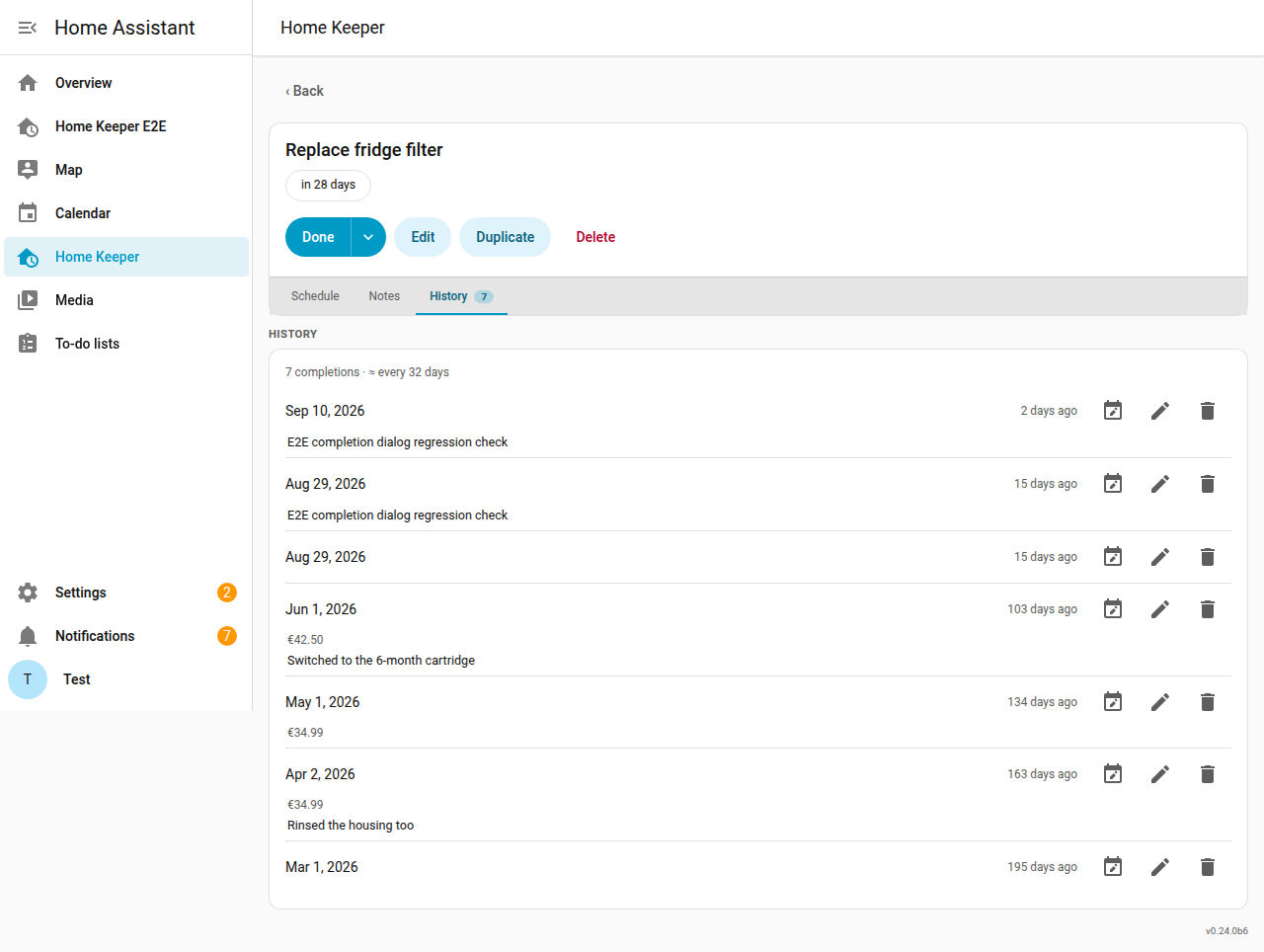
The task's history shows each completion's:
- note
- cost
- photo
- who
A past entry can be edited there without a change to the schedule. The details of
the most recent completion are also attributes of the task's next due sensor.
The home_keeper.complete_task and home_keeper.update_completion services
accept the same fields.
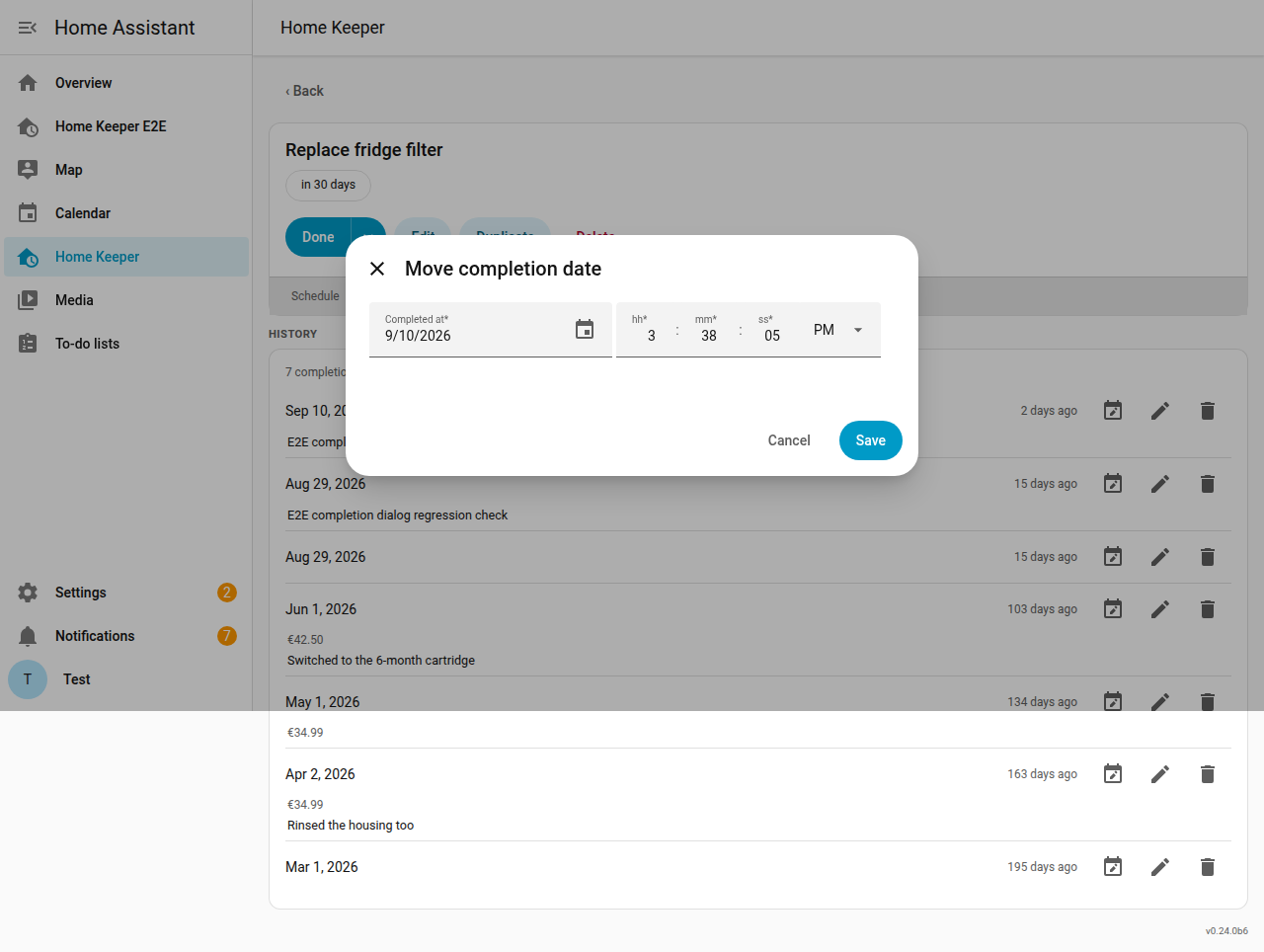
The dialog's Completed at field defaults to now. A user can set it to log a completion for the time the work happened.
The next due date of a floating task is measured from the completion date, so the completion date moves the schedule.
The move date button on a history row changes the date of that entry. The
edit button changes the recorded details and not the date. The
home_keeper.move_completion service performs the same move.
The capture dialog and the required gate apply only in the panel. A task completed from another surface completes immediately, with whatever metadata is passed:
- the native to-do checkbox, which passes no metadata
- the mobile app
- the device mark-done button
- a bare
home_keeper.complete_taskservice callThe dashboard card sends a user to the panel to complete a required task, instead of completing it directly. An automation can pass
note,cost,photo, andwhoto thehome_keeper.complete_taskservice.