Cost totals
Home Keeper adds up what you spend on your home. It uses 2 numbers that you already record:
- the cost on a completion, for maintenance and repairs. See Logging completions.
- the cost on an appliance, for what you paid for it. See Appliances.
From these, Home Keeper makes sensors that you can put on a dashboard or use in an automation. The panel also shows the totals above the task list.
The totals
- Maintenance spend for each period, by default the last 30 days and the last 60 days. A completion counts by the time of the completion, not by the time you recorded it.
- Maintenance spend, all time.
- Appliance purchases: the sum of the cost of each appliance.
Only a completion with a cost counts. A skip has no cost. The totals update when a completion or a task changes. The cost of a deleted task stays in the totals only if an appliance keeps the history of that task. The appliance page shows that history. A task keeps its newest 500 completions. When an older completion with a cost is removed, its cost leaves the totals.
All totals use the currency that is set in Home Assistant under Settings → System → General.
The sensors
| Sensor | Value | Attributes |
|---|---|---|
sensor.home_keeper_maintenance_spend_30_days | Spend in the last 30 days | count |
sensor.home_keeper_maintenance_spend_60_days | Spend in the last 60 days | count |
sensor.home_keeper_maintenance_spend_all_time | Spend in all time | count, first |
sensor.home_keeper_appliance_purchases_total | Sum of the appliance costs | count |
Each period that you set gets its own sensor. count is how many completions (or
appliances) make the total. first is the time of
the oldest completion with a cost. The entity IDs are the defaults for an English
install. Home Assistant can give other IDs in another language.
The all-time and purchase sensors keep long-term statistics, so a statistics graph card can show how the total changes.
# Send a message when the spend of the last 30 days goes above 500.
triggers:
  - trigger: numeric_state
    entity_id: sensor.home_keeper_maintenance_spend_30_days
    above: 500
actions:
  - action: notify.notify
    data:
      message: "Home maintenance spend this month: {{ states('sensor.home_keeper_maintenance_spend_30_days') }}"
The totals in the panel
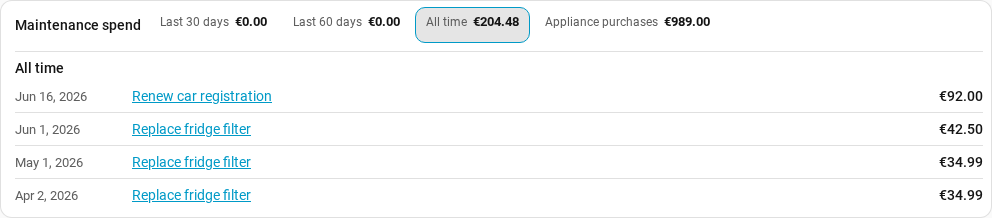
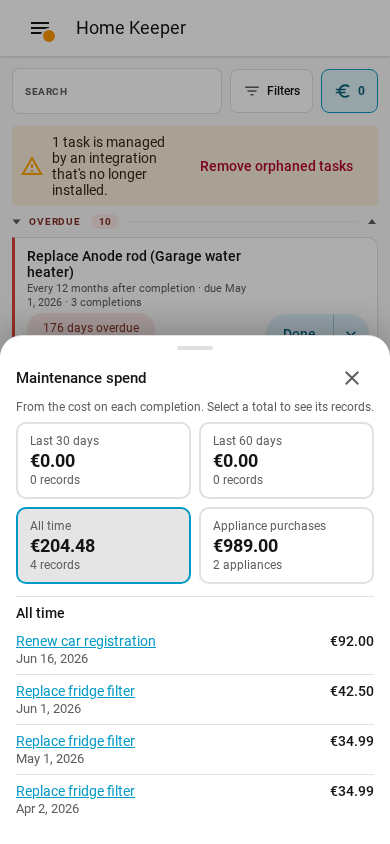
On a desktop, the strip above the task list shows 1 total for each period, the all-time total and the appliance purchases. On a phone, press the spend button in the task list bar to see the same totals in a sheet. Select a total to see the completions that make it. Select a task name to open the history of that task. Select Appliance purchases to open the appliance list.
The strip and the spend button show only when there is a completion with a cost or an appliance with a cost.
Settings
Open Settings → Cost tracking to change:
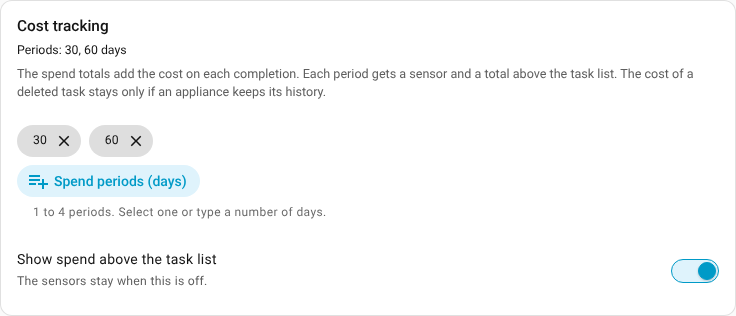
- Spend periods (days): 1 to 4 periods, from 1 to 3650 days. Select a period from the list, or type a number of days. When you remove a period, Home Keeper removes its sensor.
- Show spend above the task list: turn the strip in the panel on or off. The sensors stay when the strip is off.
An automation can change the same settings with home_keeper.set_options:
action: home_keeper.set_options
data:
  cost_windows: [7, 30, 365]
  cost_summary_panel: true