Core concepts
A task has a name, notes, an optional attached device, and a recurrence:
- Floating, shown as Repeats after each completion in the form, measures from the last completion. An example is a fridge filter every 1 month after the last completion. Each completion resets the interval. A missed task stays overdue and does not roll forward.
- Fixed, shown as Repeats on a fixed schedule in the form, is an anchored calendar schedule. An example is medicine every day at 8am. A completion moves the task to the next occurrence on the schedule. The dates that follow do not move, and they keep the same time of day when the clocks change.
- One-off, shown as Just once in the form, runs one time. See One-off tasks below.
- Triggered is monitored and condition-driven, with no schedule. See below.
- Sensor-based, shown as Based on a sensor in the form, is driven by an entity instead of the clock. An example is a generator service every 500 running hours. See Sensor-based tasks below.
An appliance, also called an asset, is the physical thing a task is about, such as a fridge, furnace, or water heater. See Appliances & virtual devices.
The panel is admin-only. This includes appliances and settings and profiles and notifications and the appliance report. The to-do list, the calendar, the device-page buttons, and the dashboard card are available to every user. See the security model for what a non-admin user can read.
Active season
Floating and fixed tasks take an optional active season. That is the part of the year the task belongs in. Outside it the next due date moves forward to the start of the next window. Take "fertilize the yard every 2 months, April 1 through September 30". A completion on September 15 makes the task due on April 1 of the following year instead of November 15.
Turn Active season on in the task form and pick the start and end dates.
Add another season puts a second window on the task, so spring and fall can share
one. A window that wraps the new year (November through March) works the same way.
The home_keeper.add_task and update_task actions take the same windows as a list
of {"start": "MM-DD", "end": "MM-DD"} objects, so an automation can set a season.

Put a task in a room
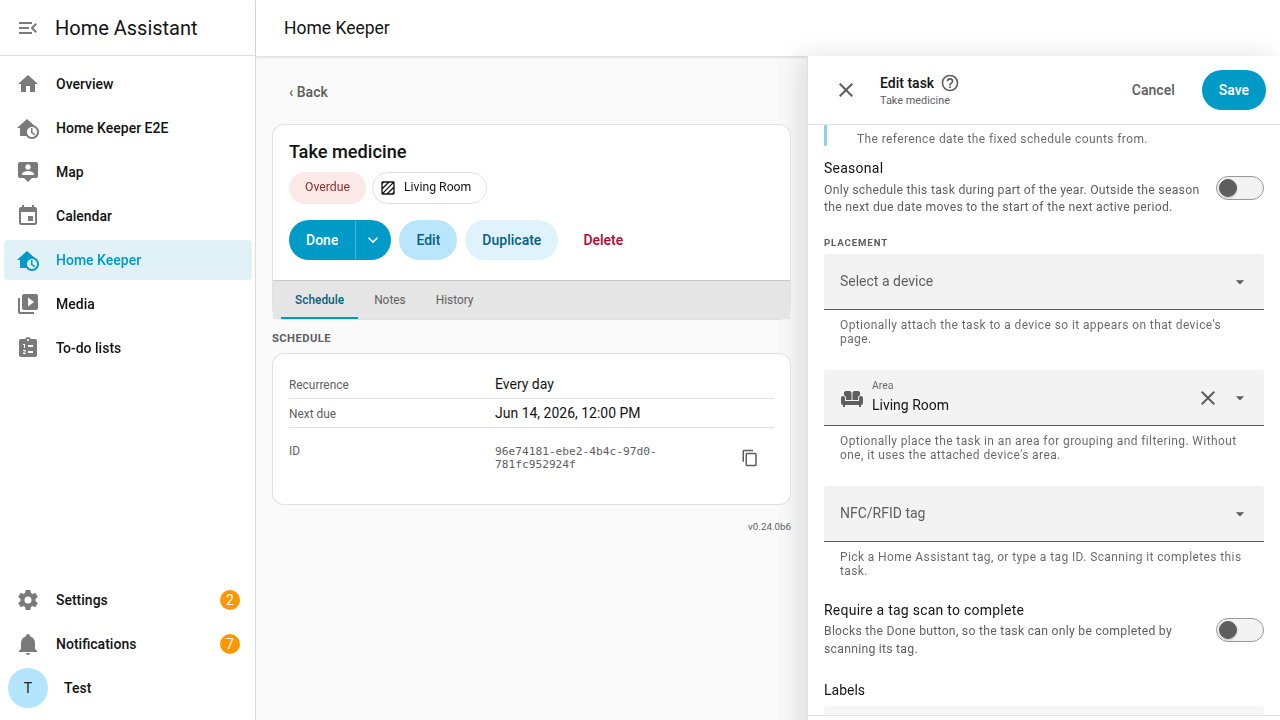
A task can have a Home Assistant area. Select the area in the Area field of the task form.
A task attached to a device takes that device's area. The field is for tasks with no device, such as the plants in the living room. A selected area overrides the device's area. Clear the field to return the task to its device's area.
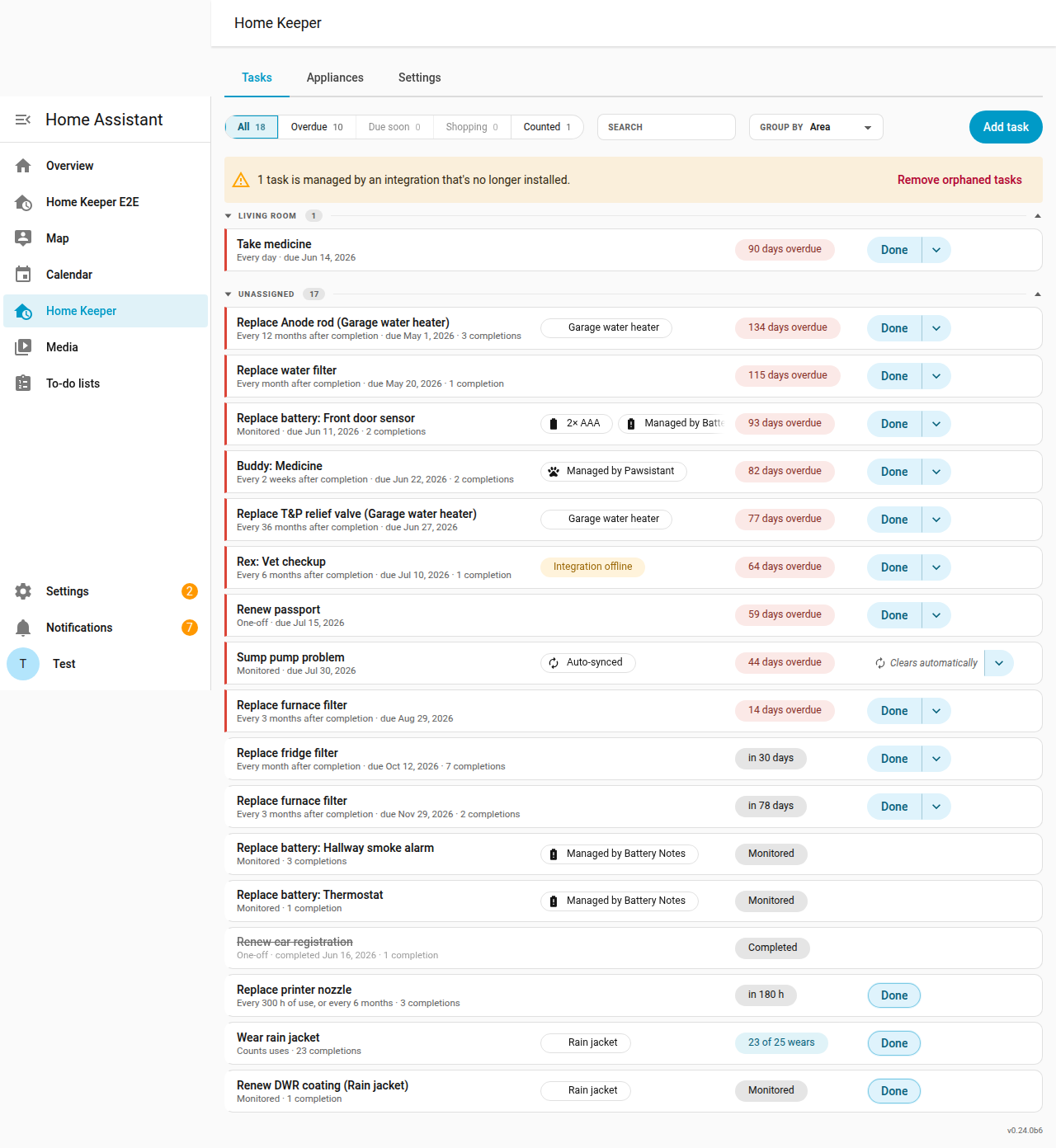
A task with an area can be grouped by Area on the Tasks tab. A
dashboard card or a
Profile can filter by area. The
home_keeper.add_task and home_keeper.update_task services also set the area.