Triggered tasks
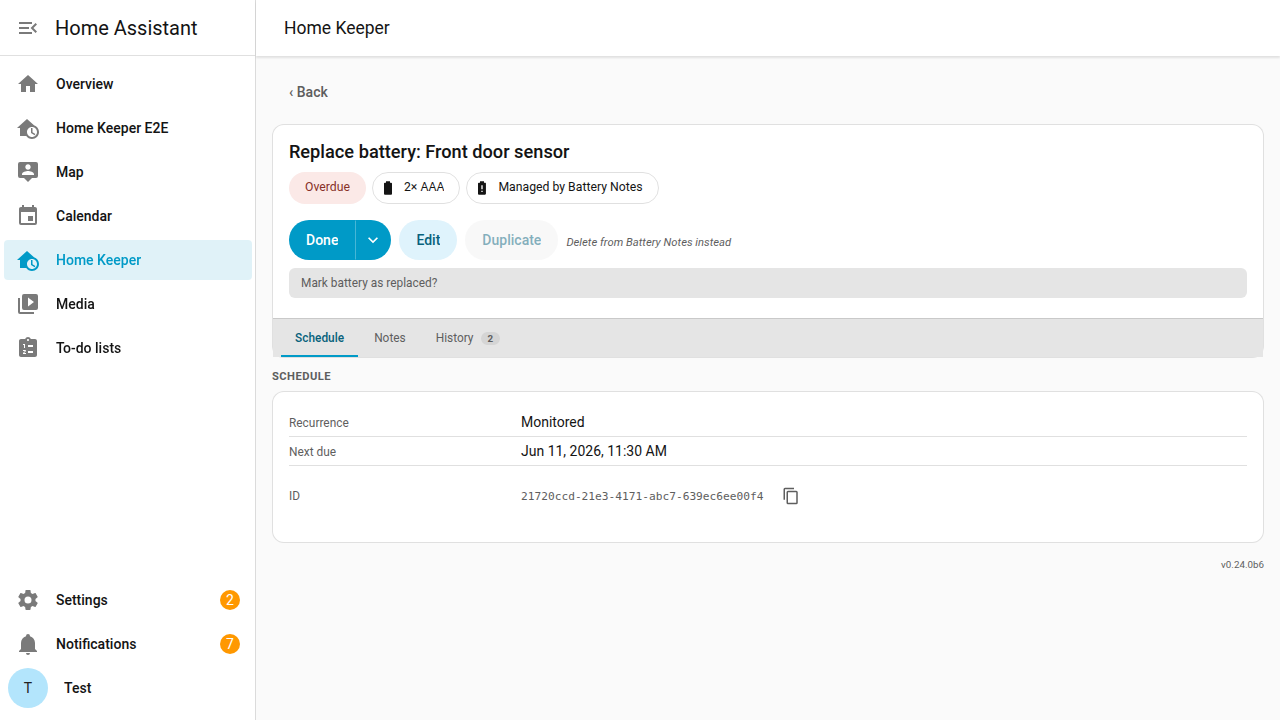
Home Keeper supports triggered tasks. A triggered task has no schedule. The owning integration arms it when a condition becomes true and clears it when the condition resolves. This is useful for maintenance that reacts to a condition, such as a low battery or a wet water sensor. For batteries, the Battery Notes glue integration does this.
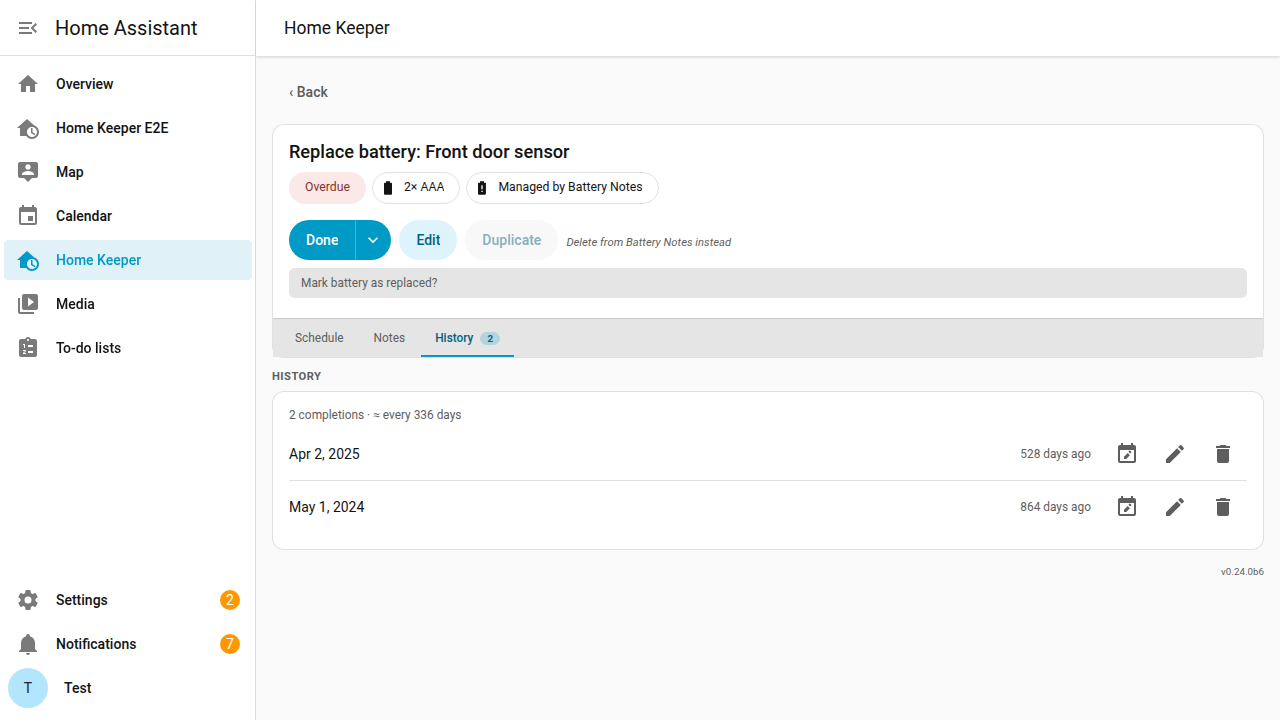
- An armed triggered task is due now on the to-do list and the device's overdue sensor and the panel. A Managed by chip names the owning integration.
- A completion in Home Keeper or in the owning integration records the event. The task then leaves the to-do list and the calendar and is listed in the Monitored section until it is armed again.
- The task persists across cycles and its completion history accumulates.
Integration-provided metadata chips (task_chips)
Home Keeper supports metadata chips that an integration attaches to a task. This is useful for an integration-owned fact on the task row, such as a battery type or a part number or a reorder link.
The owning integration sets task_chips in home_keeper.add_task or
home_keeper.update_task. The panel task list and the dashboard card show the
chips. A chip cannot be edited by a user.
Each chip is {label, icon?, url?}. The icon must be an mdi: name. The URL must
be http(s)://. A chip with an empty label is dropped.

Sync problem binary sensors as tasks
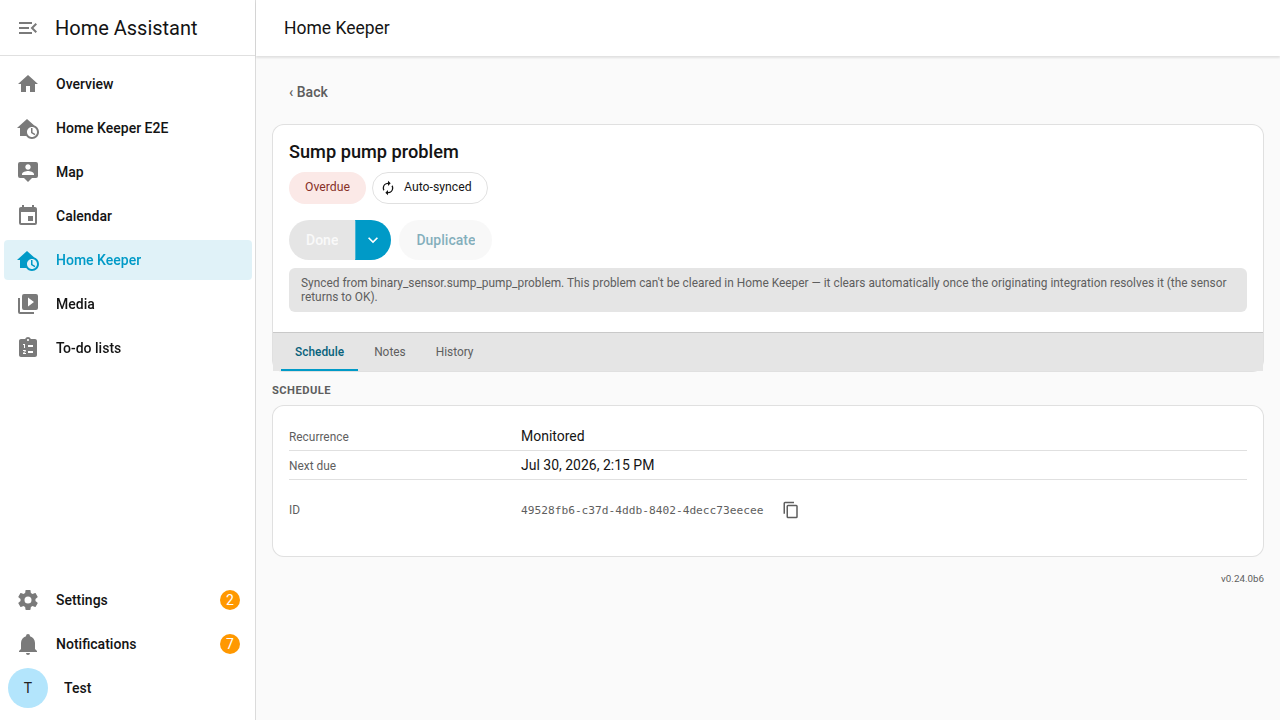
Home Keeper supports syncing every binary_sensor with the problem device class
as a triggered task. This is useful for a leak detector or an appliance fault or a
printer error without an automation. Turn on Sync problem sensors in
Settings → Devices & services → Home Keeper → Configure.
- Home Keeper arms the task while the sensor reports a problem and clears the task when the sensor reports OK.
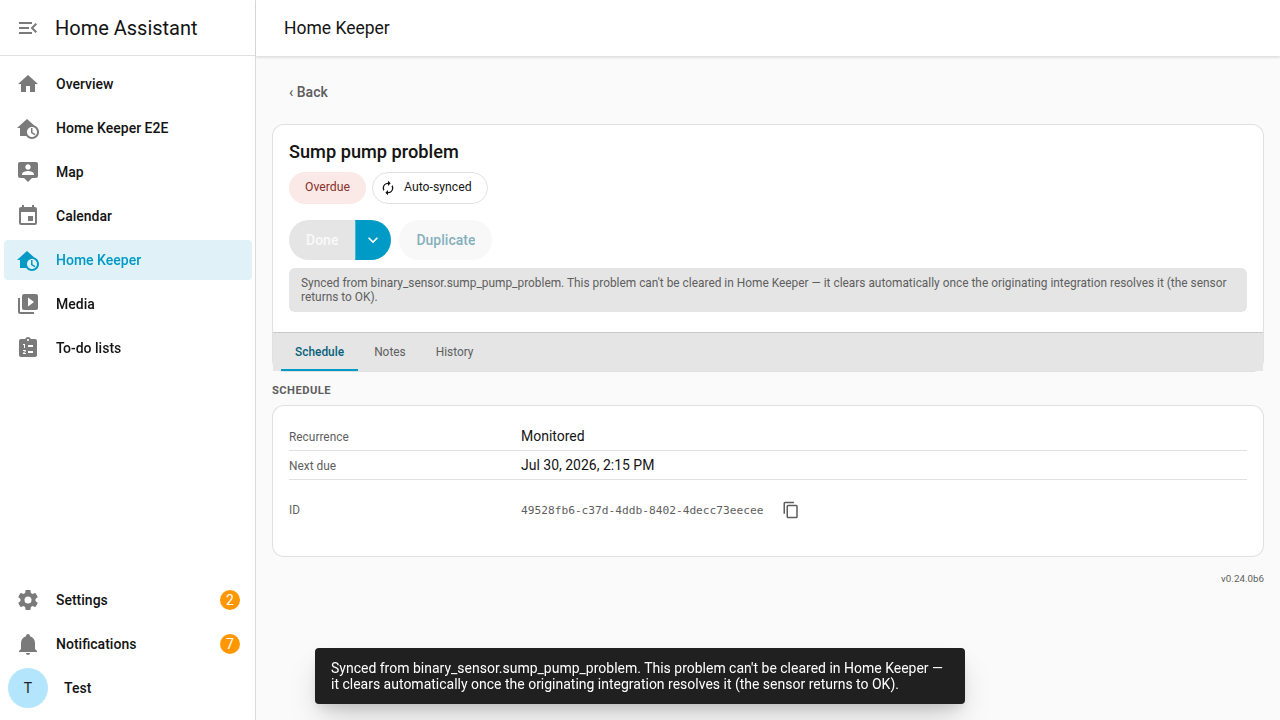
- A synced task cannot be completed in Home Keeper. The problem must be resolved at its source.
- Each synced task inherits the sensor's device and area.
- An armed synced task is listed as overdue on the task list and the card and in a Profile and in notifications. A notification for a synced task offers Snooze instead of Mark done.
- The sync is off by default. With the sync on, entities or devices or areas or labels can be excluded in the panel Settings tab or in the options flow. An excluded device excludes every problem sensor that belongs to it.
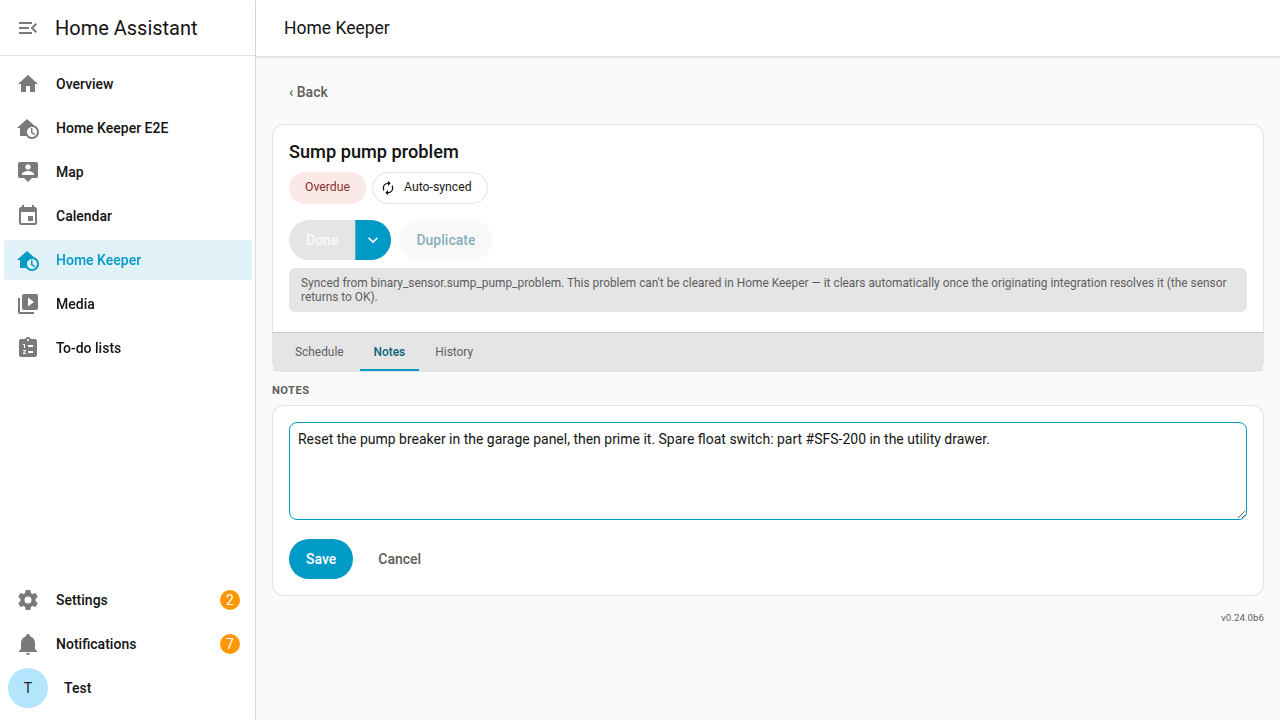
- Open the task and use Add a note to record the fix. The note is tied to the sensor and is kept when the task clears and re-arms or is removed and recreated.