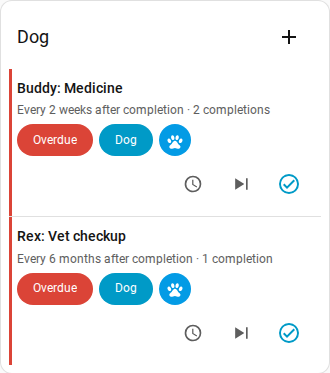
Dashboard card
Home Keeper supports a dashboard card, Home Keeper Tasks (custom:home-keeper-card),
that lists tasks and completes them with a Done button. This is useful for a task
list on a dashboard or a wall tablet. The card resource is registered automatically.
To add the card, select Home Keeper Tasks in the dashboard Add card picker.
From the card, a user can:
- complete a task with Done
- add a task with the + button in the header
- open the document links that a task shows
Editing and deletion of a task are supported only in the panel.
The card editor has these options:
- Filter by status, area, device, label, recurrence type, a "due within N days" window, or a saved Profile.
- Sort and group the tasks, and limit the number of rows.
- Select what each row shows.
- Hide card when empty removes the card from the dashboard when the filter matches no task. Without it the card shows "No tasks match this filter."
A completion made in the panel or on another surface is shown on the card immediately.
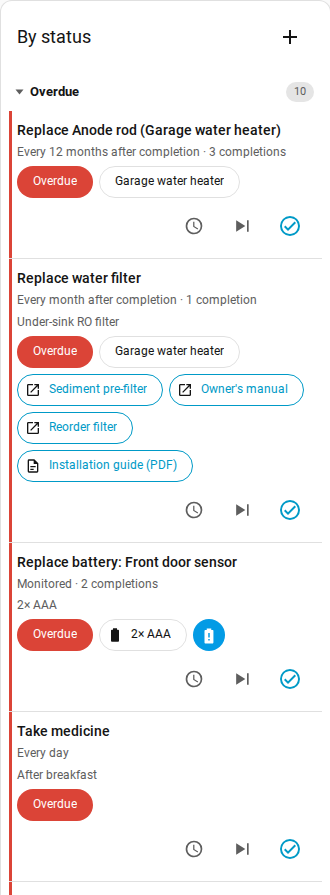
Show a task's appliance documents on the card
A task that is attached to an appliance can show the appliance's documents on its row. This includes document links and uploaded files and metadata links. Nothing is shown by default.
- Open the task in the panel editor.
- In Links to show on card, select the documents. The field is shown only if the appliance has at least 1 document.
The card_links field of the home_keeper.add_task and home_keeper.update_task
services sets the same list. Each selected document is shown as a chip on the task
row and opens in a new tab. An uploaded file opens through a short-lived signed URL.
If a document is renamed or removed on the appliance, the chip is updated or removed.

Filter by label: one card per subject
A card can be limited to tasks with a Home Assistant label. This is useful for one card per subject, such as the car or the dog. A task matches a label if the task has the label or if its attached device or area has the label.
- Open the task and select the labels in the Labels field. The
home_keeper.add_taskandhome_keeper.update_taskservices also set labels. - Optional. Apply the same labels to devices or appliances in Settings → Devices to include all their tasks.
- In the card editor, set Limit to labels. With more than 1 label, set the Any/All match mode.
- Optional. Enable Show labels to show each task's labels on its row.