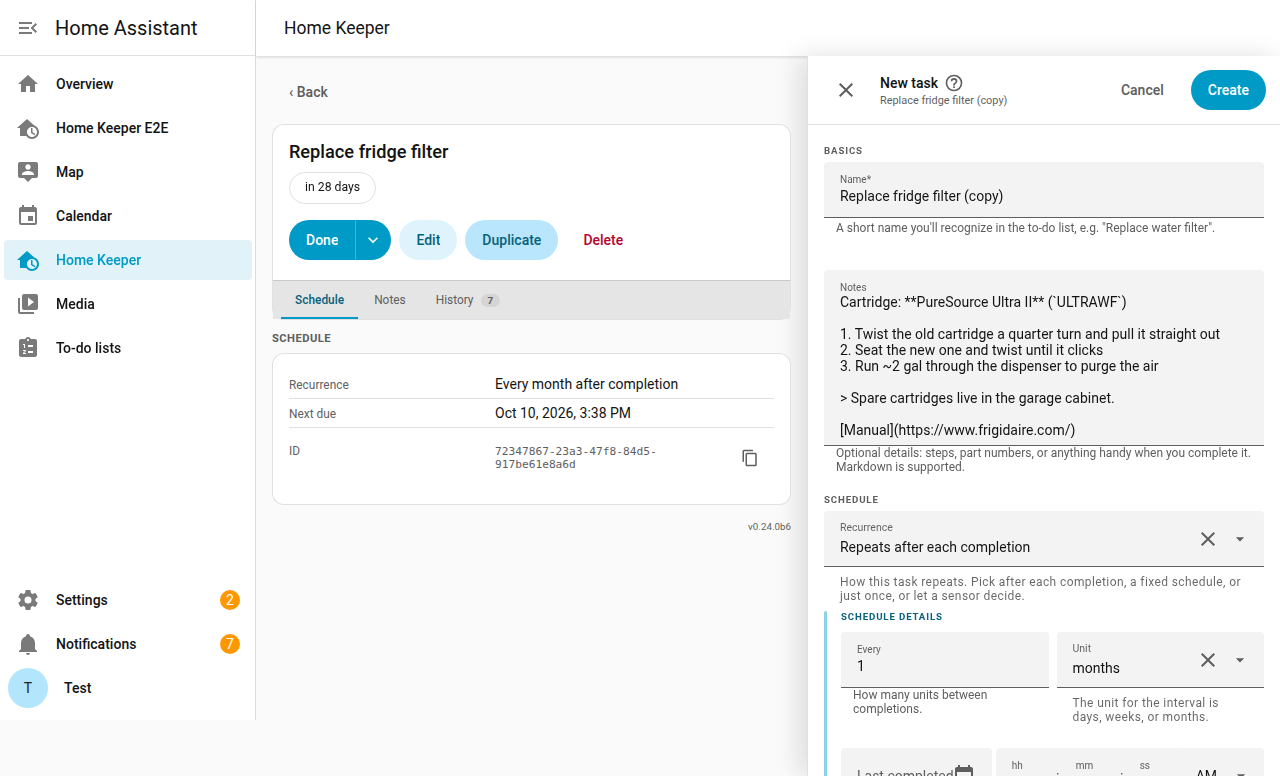
The panel
The panel has the tabs Tasks, Appliances, and Settings.
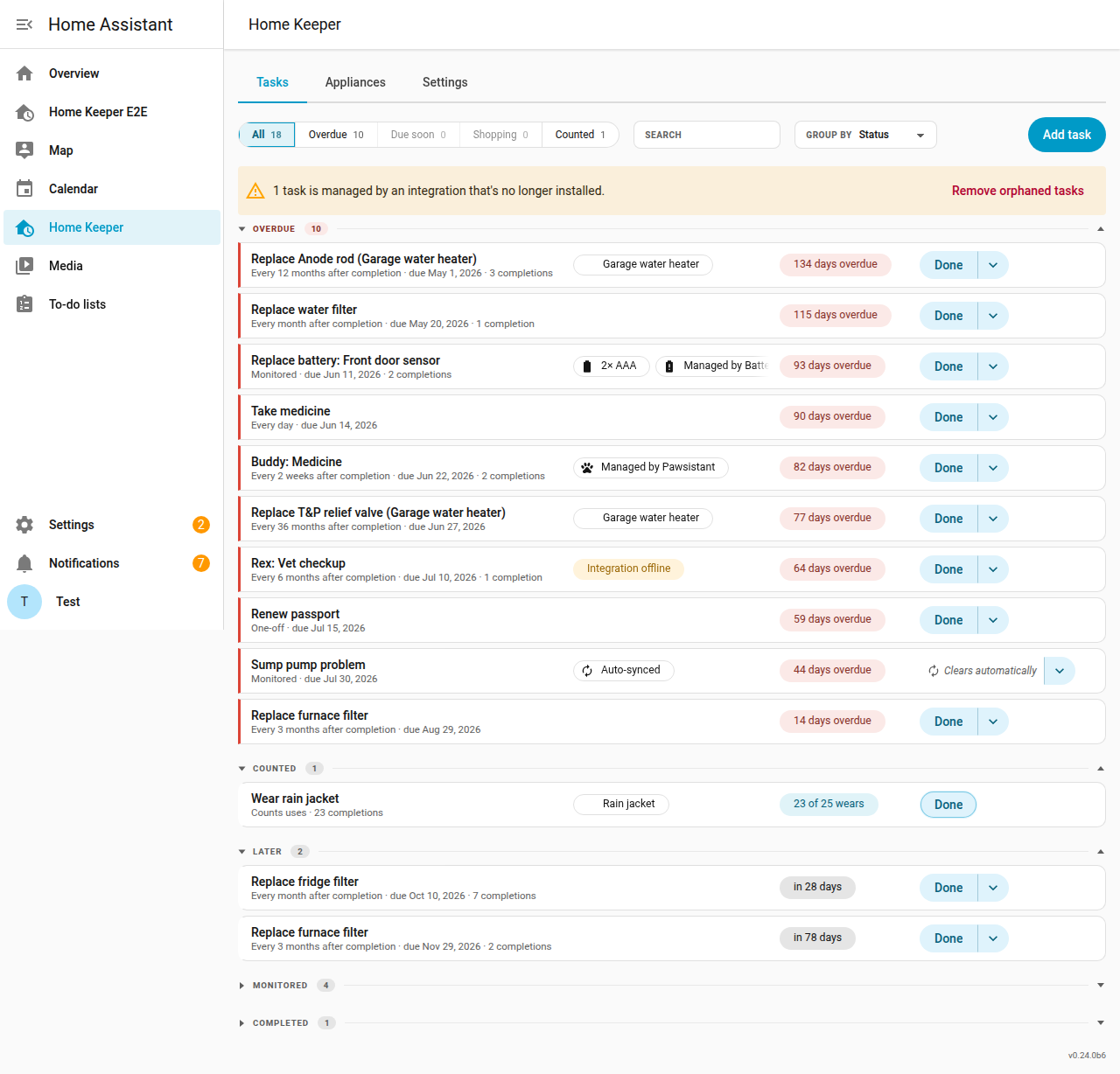
On the Tasks tab:
- Select a scope pill to filter the list by status.
- Type in the Search box to narrow the list to the tasks that match.
- Select a saved Profile in the Profile picker or a grouping in Group by.
- Press Add task to create a task.
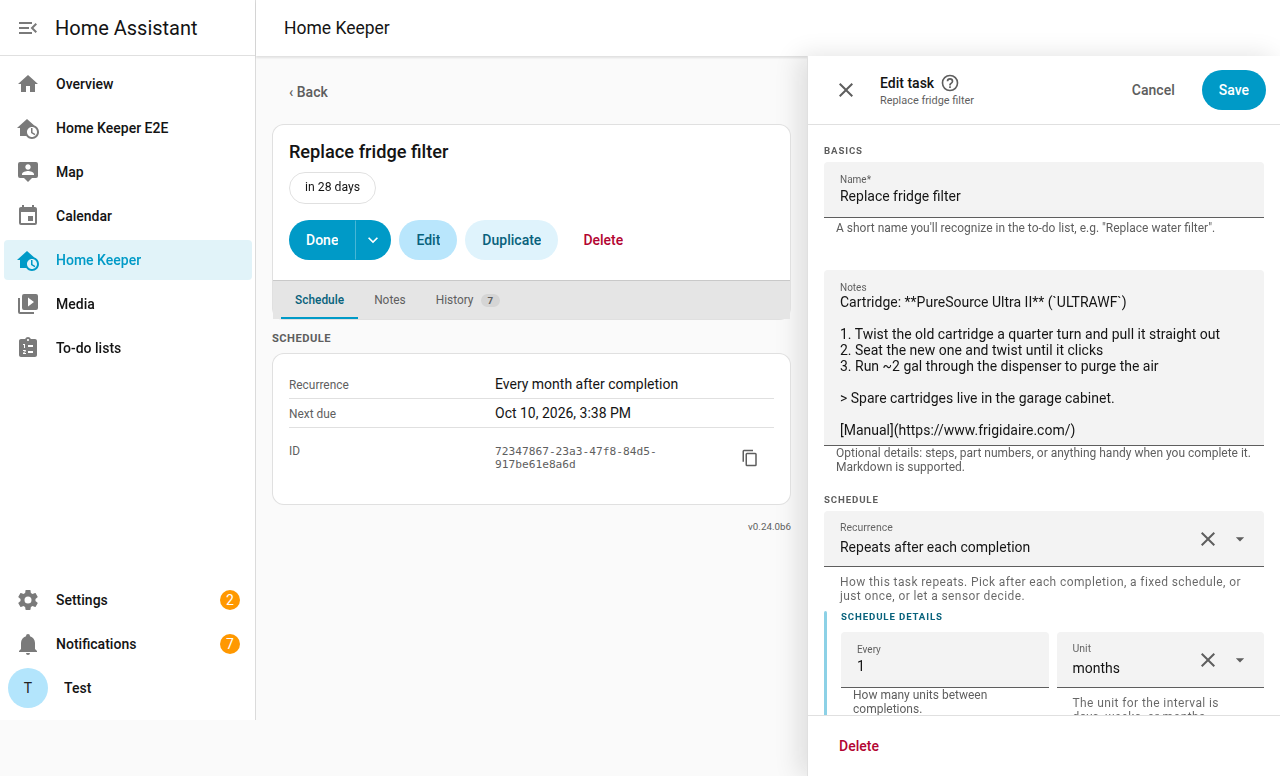
- Press Edit on a task to open its form. The form has the groups Basics, Schedule, Placement, and Completion. Press Save in the header or Delete in the footer.
- Select a task's device chip to open its appliance. The appliance list and an appliance's own page link straight to the Home Assistant device instead. A mark on the chip shows when it opens the device page.
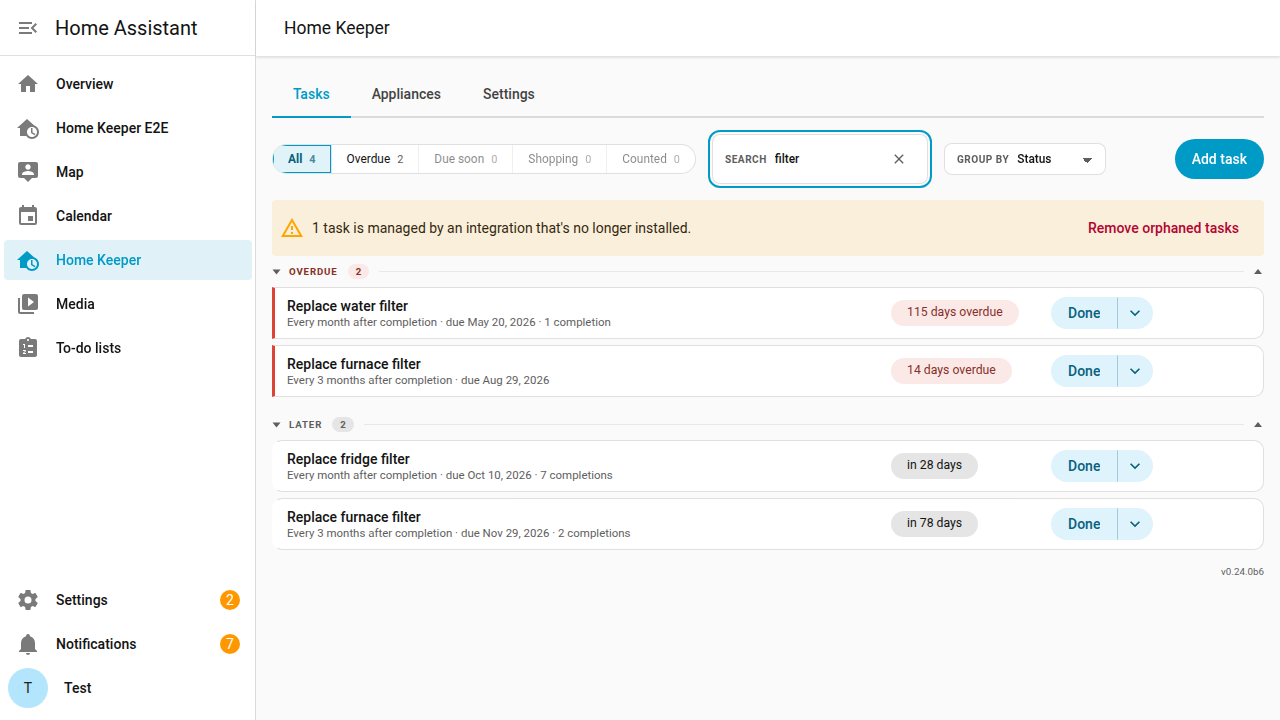
The Search box reads these parts of a task:
- the name and the notes
- the attached device and the area
- the companion that supplied the task
Every word you type must appear somewhere, in any order. Accents are ignored, so
cistic finds Čistič. The scope pill counts follow the box, so a pill never
promises more than the list shows.
The task list and the appliance list are compact, so more rows fit on the screen. On a phone, each task row keeps the Done button next to the task.
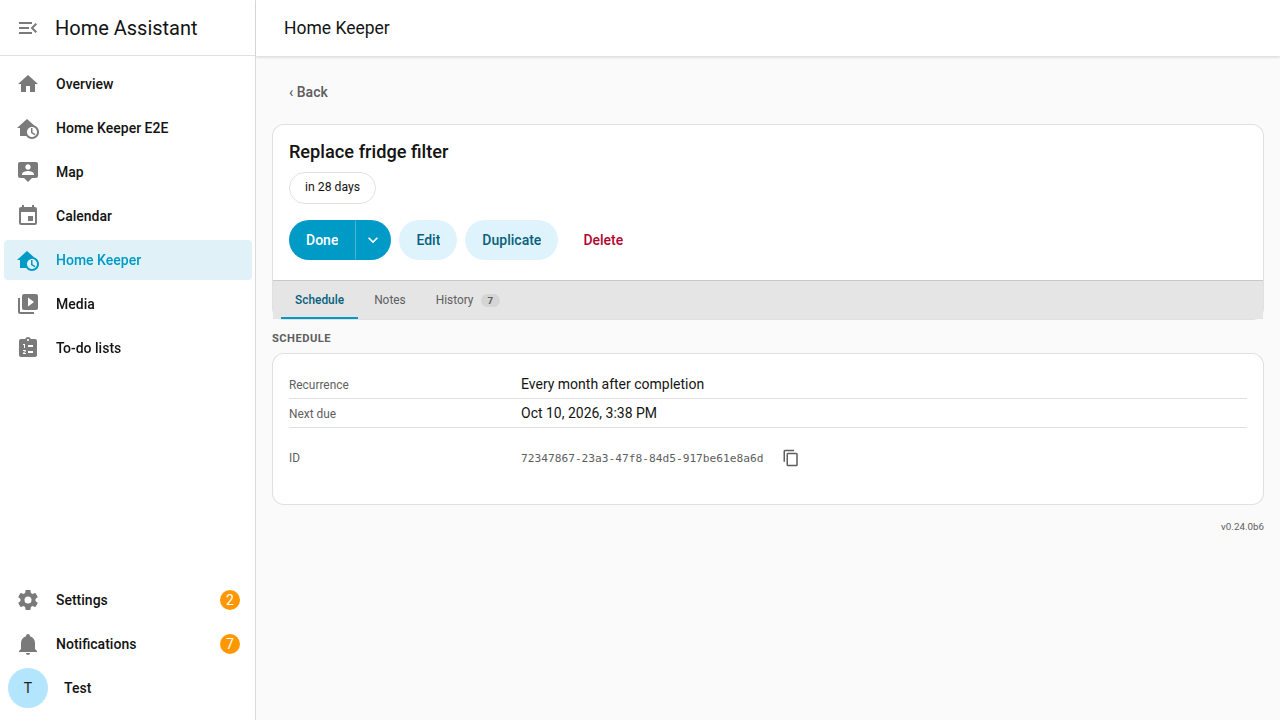
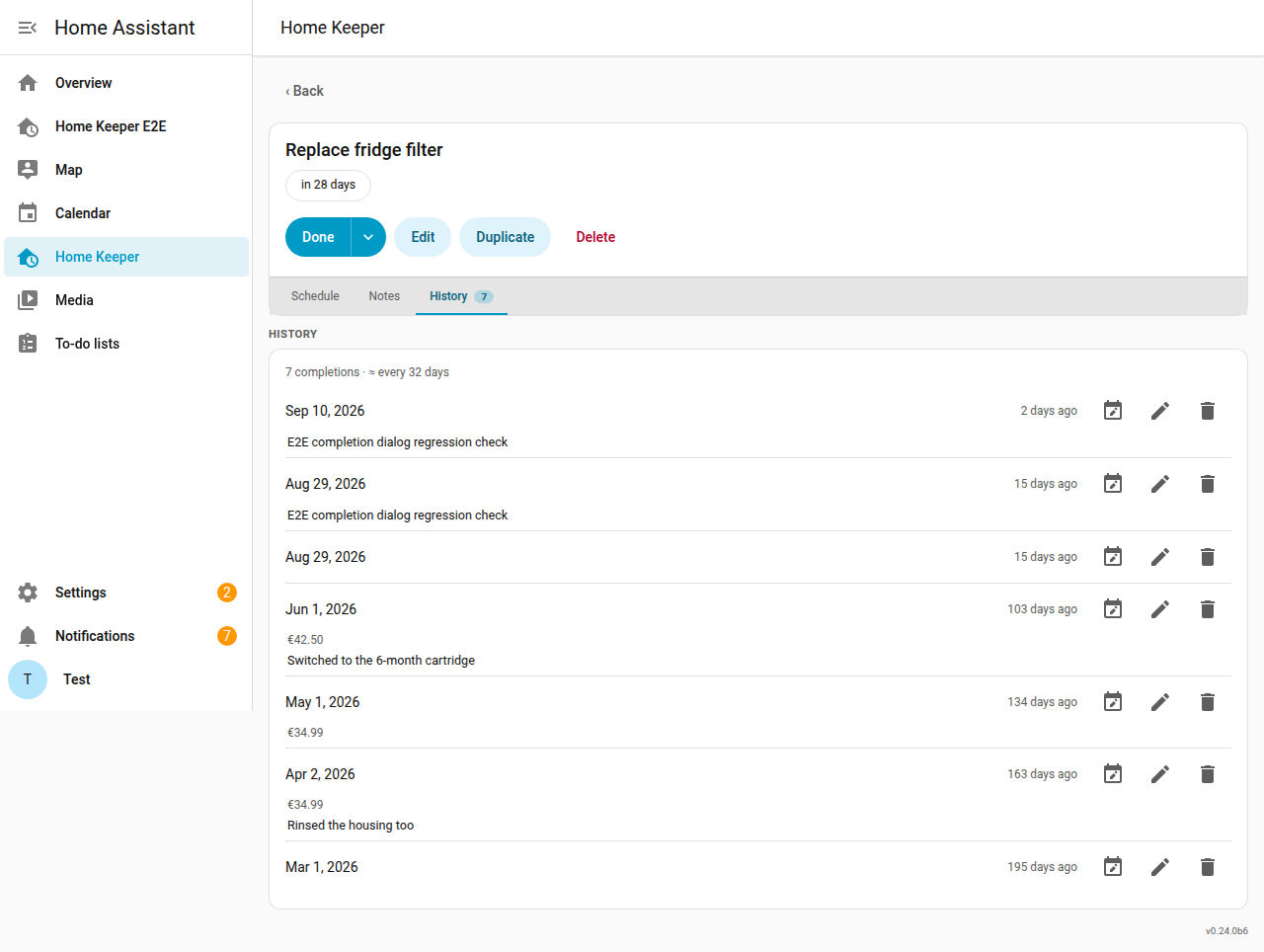
A task's page has the sub-tabs Schedule, Notes, and History. Each
sub-tab has its own URL, such as /home-keeper/tasks/<id>/notes. The page opens on
the Schedule tab.
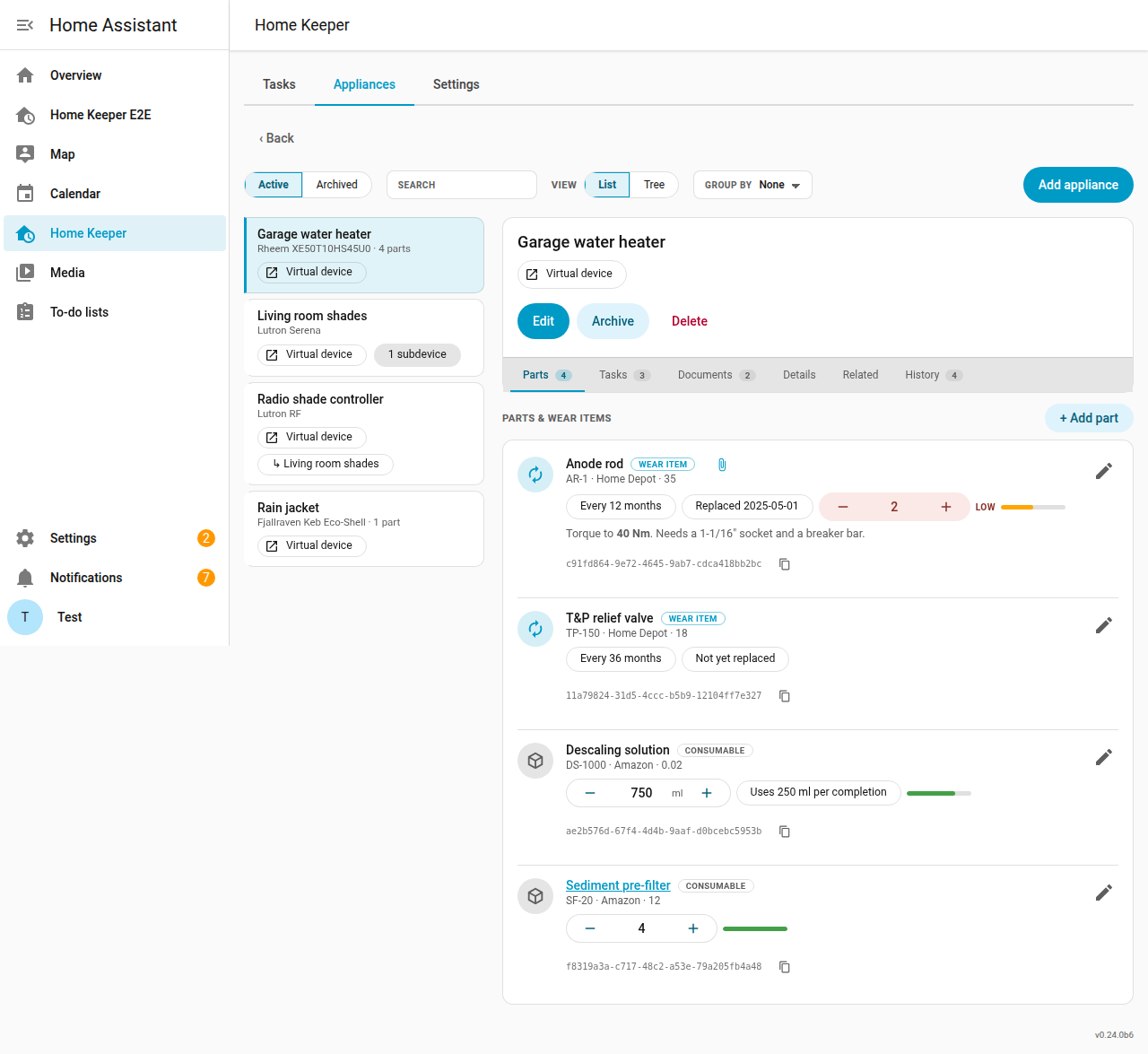
On the Appliances tab, select an appliance to open it. An appliance has the
sub-tabs Parts, Tasks, Documents, Details, Related, and
History. Each sub-tab has its own URL, such as
/home-keeper/appliances/<id>/documents. Press Edit to open the appliance form.
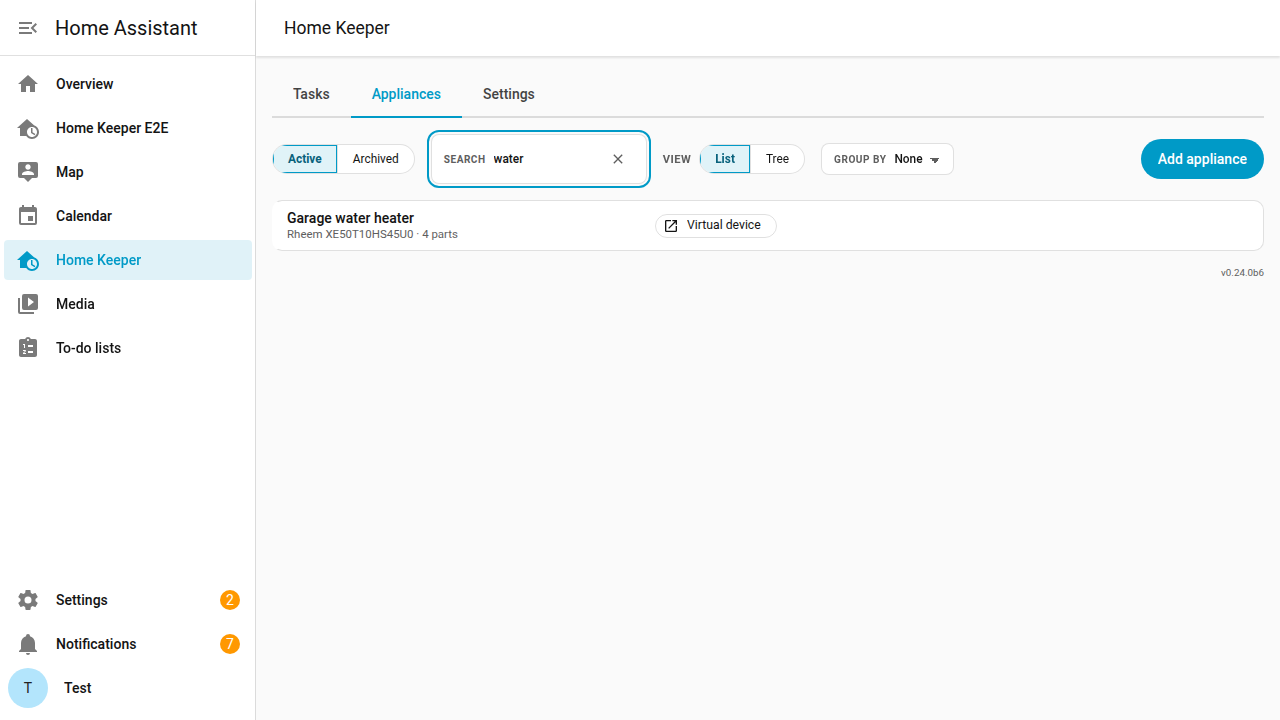
The same Search box narrows the appliance list. It matches the model and the serial number as well as the name.
Duplicate a task
To create a task from a copy of another task, press Duplicate on the task's page. The create form opens with the values of the original. Change the values and press Create. Nothing is saved before Create.
The copy does not include:
- the completion history
- the starting reading of a meter task
- the NFC tag and the require-scan setting
- the required completion fields
- integration-provided chips and the integration source
A task that another owner manages cannot be duplicated. Duplicate is disabled for these tasks and shows the owner when pressed. This applies to:
- a wear item from an appliance part
- a synced problem sensor
- a condition-driven task
- a task that another integration manages