Task photos
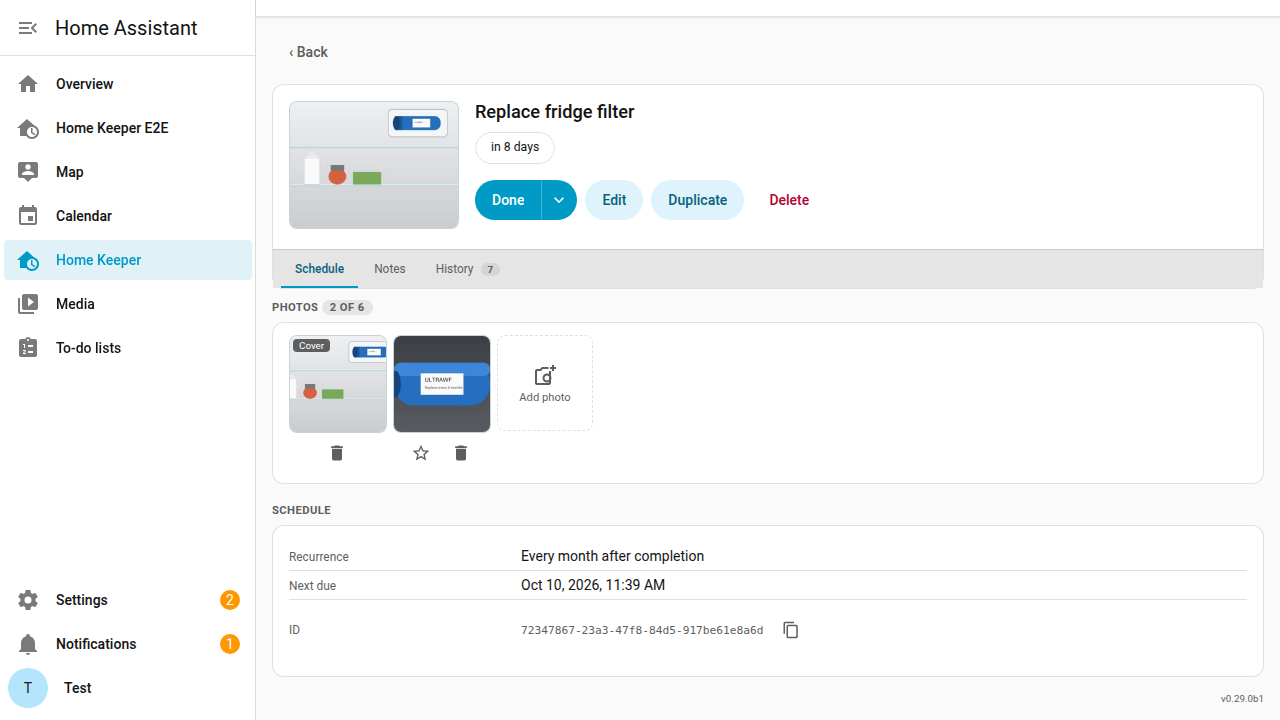
A task can have up to 6 photos. Use them to show what needs work and where it is.
Take a task "Repair damaged insulation above bedroom". A photo of the damaged area shows the exact place months later.
Task photos are different from completion photos. A completion photo records the work on one date. Task photos stay on the task across all of its completions.
Add photos when you create a task
The New task form has a Photos section under the name and the notes.
- Select Add photo, then select 1 or more images. On a phone, you can also take a photo with the camera.
- To make a different photo the cover, select the star on that photo. To remove a photo, select its delete button.
- Select Create. Home Keeper creates the task, then uploads the photos.
If a photo does not upload, Home Keeper keeps the task and opens the task page. A message tells you how many photos did not upload. Add those photos again on the task page.
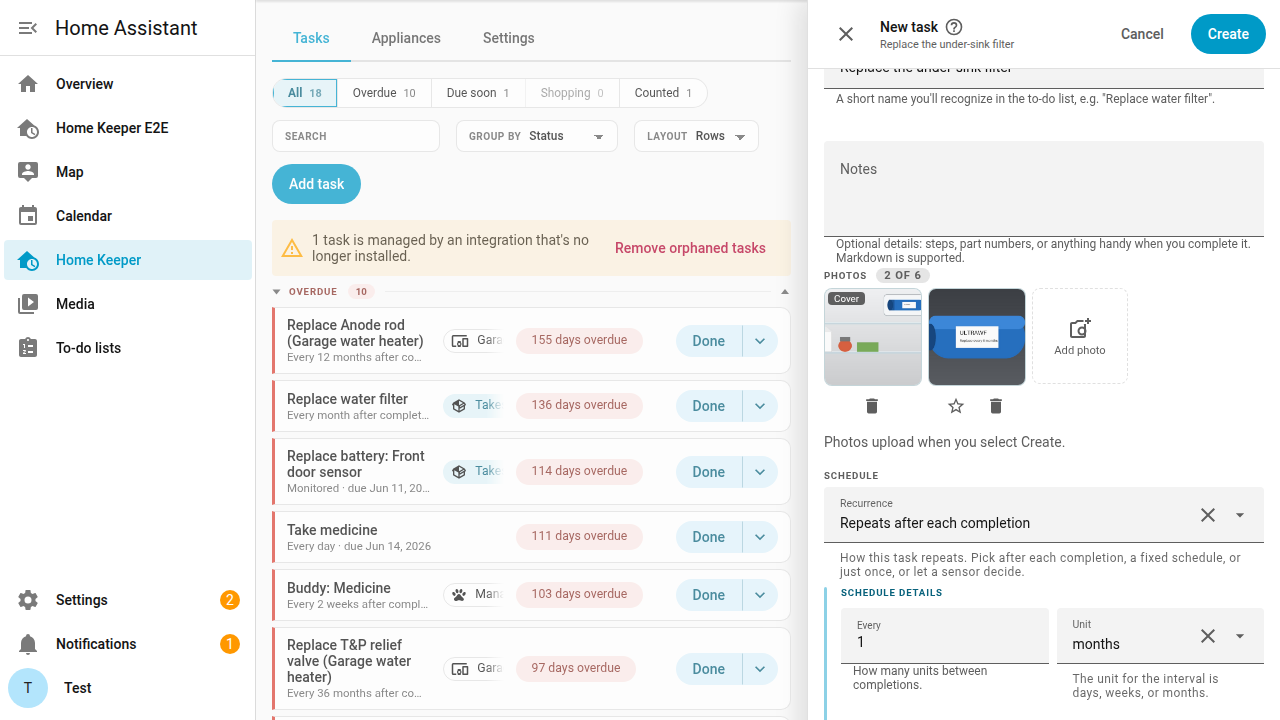
The Edit task form shows the same Photos section. There, each change applies immediately, as on the task page.
From the dashboard card
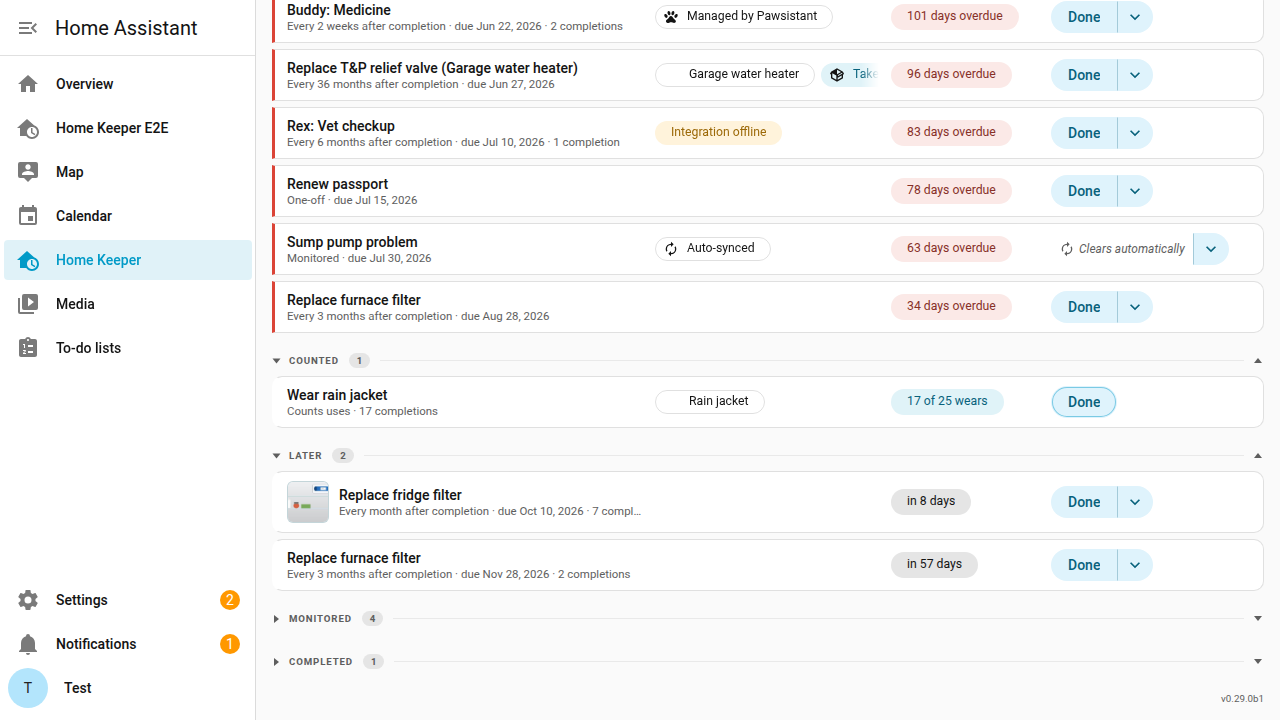
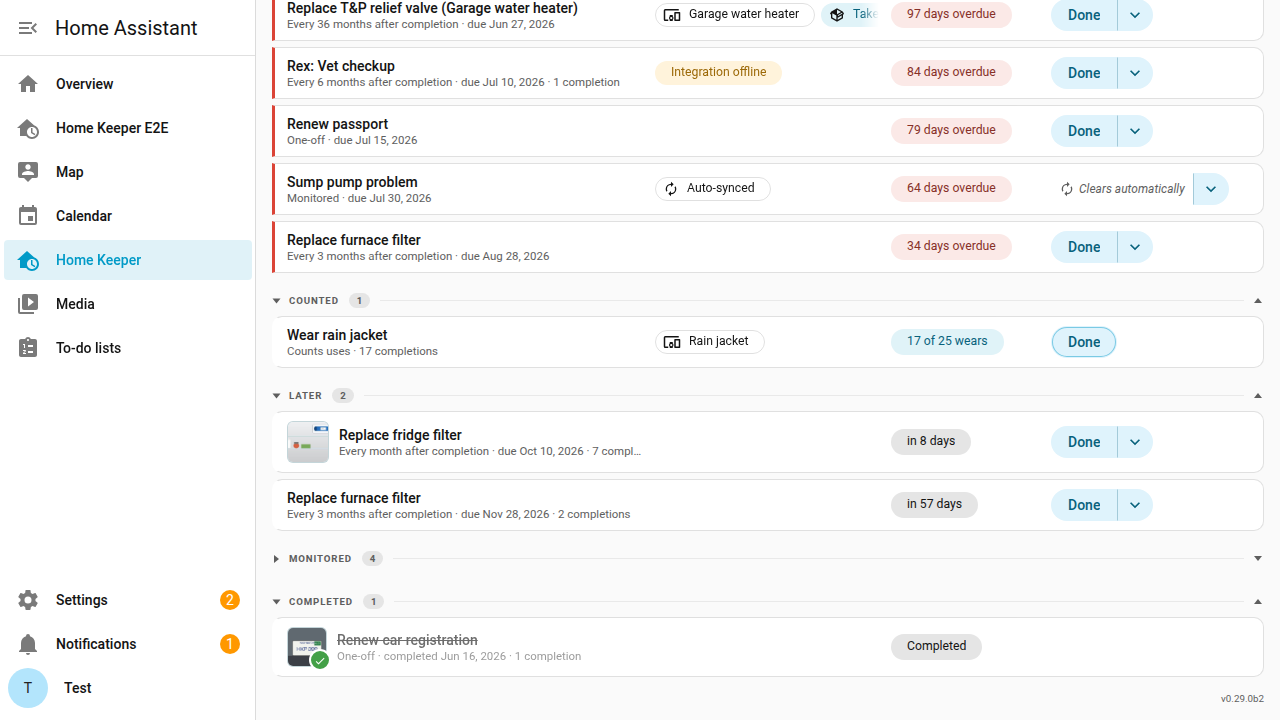
The New task form of the dashboard card has an Add photo button under the fields. The first photo is the cover. The card shows the cover on each task row. Select the cover to open the full image.

Add a photo to a task
- Open the task.
- On the Schedule tab, select Add photo in the Photos section.
- Select an image file. Home Keeper accepts PNG, JPEG, WebP and GIF files of up to 25 MB.
On a phone, the file picker can also open the camera.
The cover
The first photo is the cover. The cover shows in 3 places:
- Beside the task name at the top of the task page.
- On the task row in the task list and on the dashboard card.
- At the top of the dialog that logs a completion, when the task asks for completion details.
To make a different photo the cover, select the star on that photo.
Open and remove a photo
Select a photo to open the full image in a new tab. To remove a photo, select the delete button on the photo, then confirm. Home Keeper deletes the file.
After photos
A completion can have its own photo. It shows the result of the work. Home Keeper shows this after photo beside the task photo.
To add an after photo to a task that completes with one tap:
- Select the arrow beside Done.
- Select Done with photo or note….
- In the dialog, add the photo, then select Mark done.
A task that asks for completion details opens the same dialog from Done.
When the last completion has a photo, the task page shows it beside the cover:
- A one-off task shows the 2 photos as Before and After.
- A task that repeats shows them as Cover and Last completion.
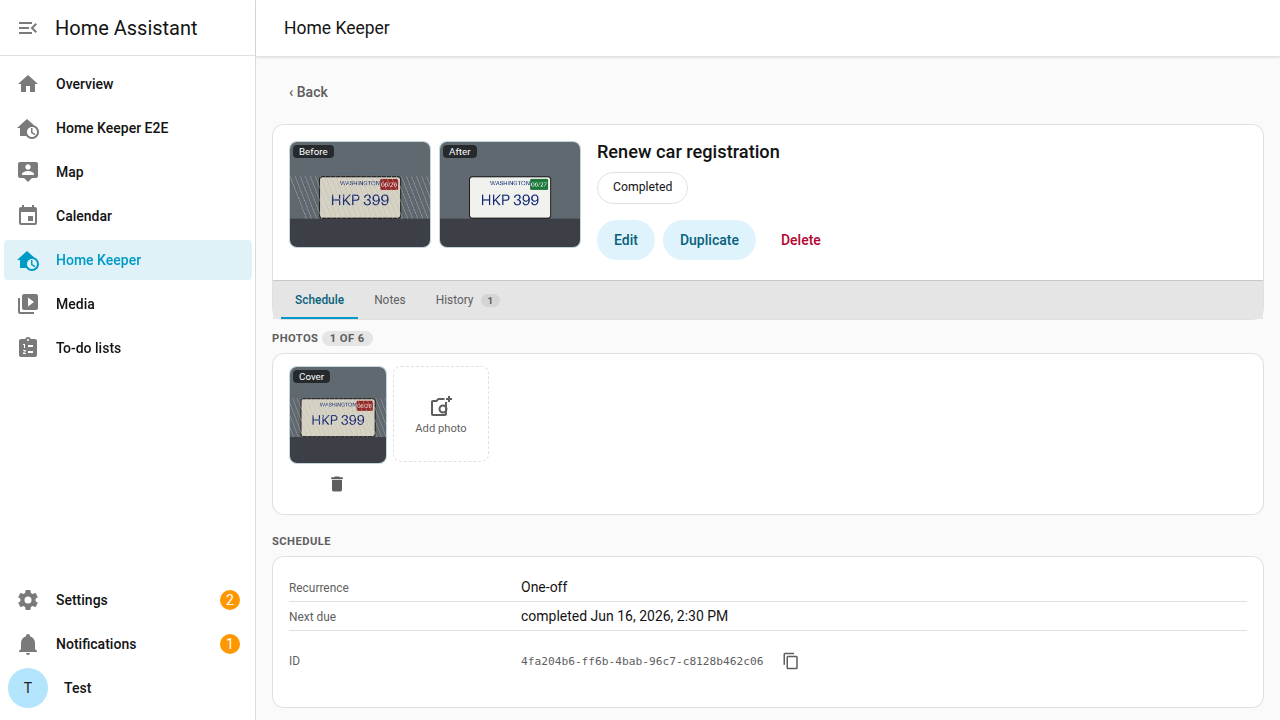
A one-off task in the Completed group shows its after photo with a check mark, in place of the cover.
Who can add photos
A photo is part of the task. So any user who can create a task can also add, remove and reorder its photos. A user who is not an admin does this from the panel or the dashboard card. See the security model for the details.
Where the files are
Home Keeper keeps the files in the home_keeper/task_photos folder of your Home
Assistant configuration. A Home Assistant backup includes them. Home Keeper also
keeps a small copy of each photo for the task list and the photo strip, so a page
with many photos loads quickly.
The original photo is not changed. A photo from a phone can hold the place where you took it, and the original keeps that data. The small copy does not.
To keep the place out of a photo, turn off location in the camera first.
When you delete a task, Home Keeper deletes its photos. The history that a deleted task leaves on its appliance does not keep them.
An export does not include task photos, because the document is text. The export counts them, so you know how many to add again after an import on a new system.
Automations
Adding, removing or reordering photos fires home_keeper_task_updated with
photos in changed_fields. The home_keeper.sign_task_photo_url action gives a
short-lived URL for a photo. Use it to show the photo in a notification. The
home_keeper.remove_task_photo and home_keeper.set_task_photo_cover actions
change the photos without the panel.
An action cannot send a file, so you add a photo only in the panel or on the card.