Sensor-based tasks
Home Keeper supports sensor-based tasks. A sensor-based task is bound to a Home Assistant entity and Home Keeper arms it from the entity's state. This is useful for a service that is due after an amount of use, such as an oil change every 15000 km. It is also useful for a reading that crosses a limit, such as a filter change when airflow drops below 60%, and for a binary sensor that reports the condition, such as a water tank empty sensor. No automation is needed.
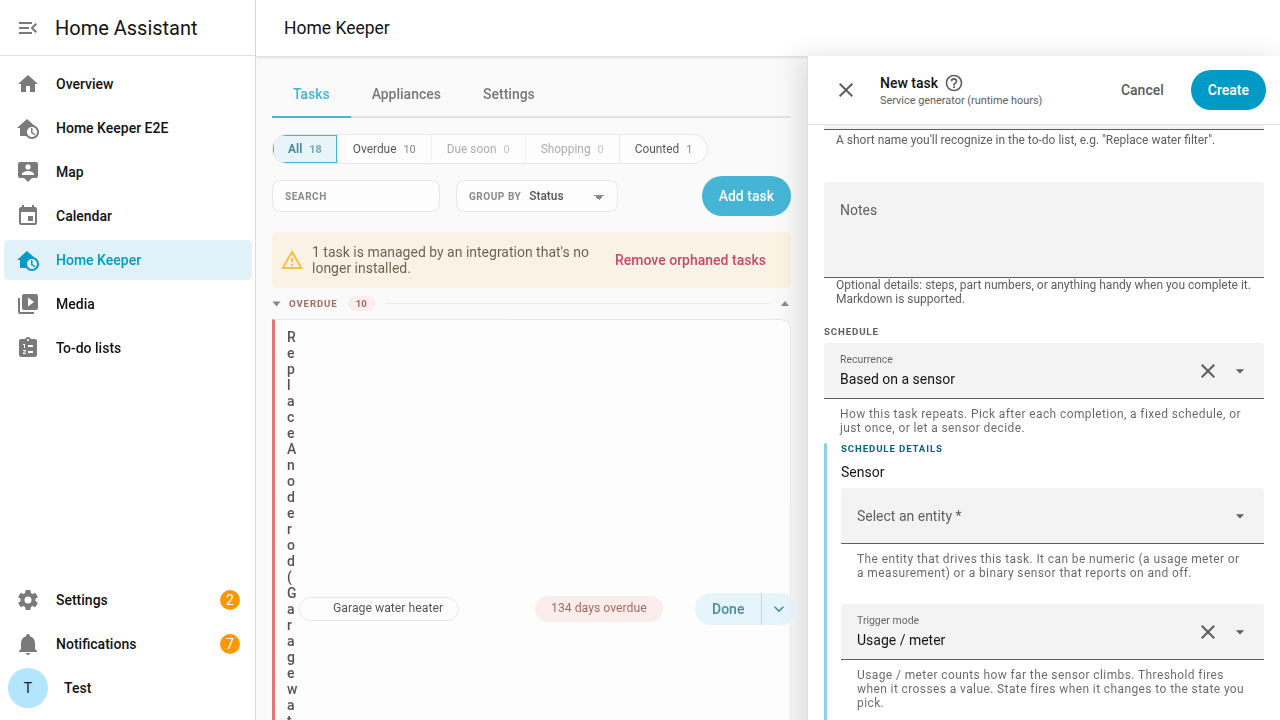
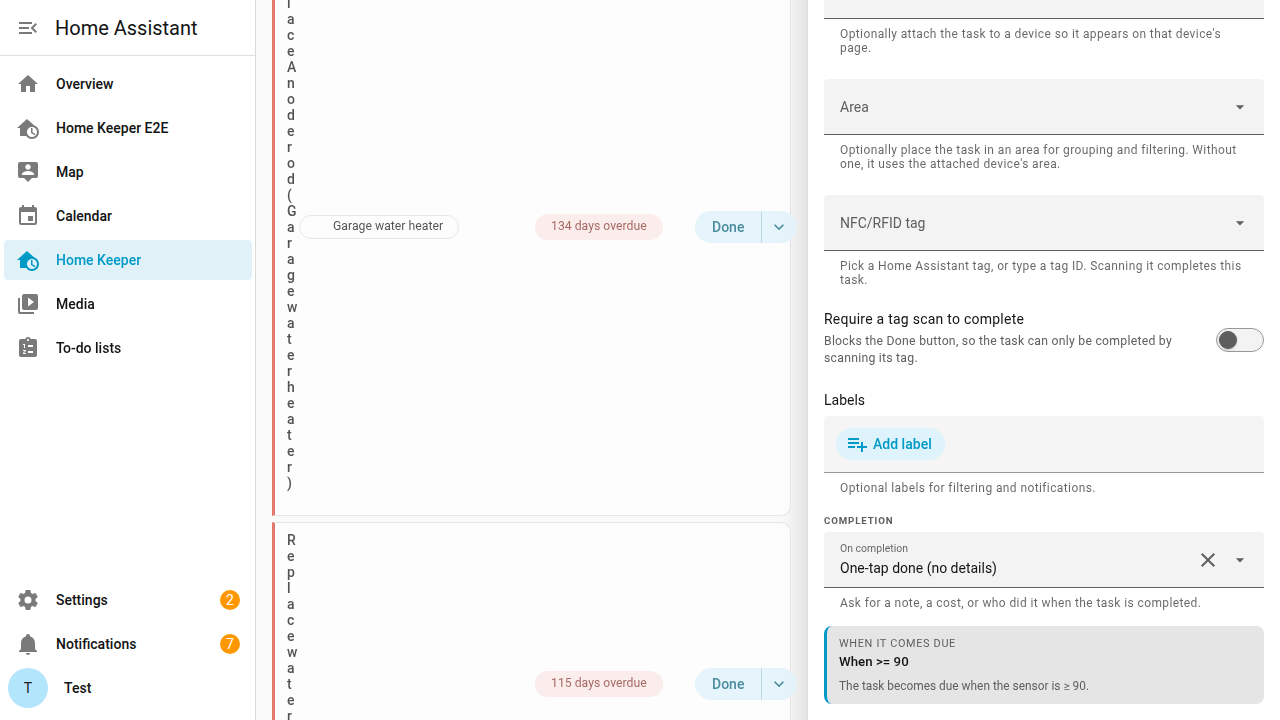
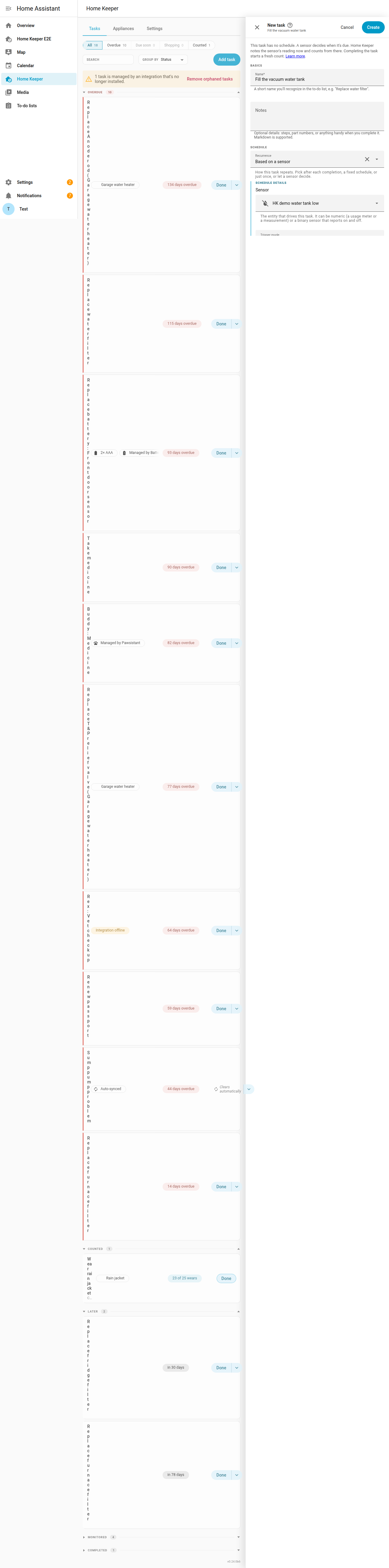
On the task form, select Based on a sensor and select the sensor and a mode:
-
Usage or meter: set a target. Home Keeper records the sensor reading at task creation and at each completion as the baseline. The task becomes due when the meter advances by the target from the baseline. A completion re-anchors the baseline at the current reading. Home Keeper re-anchors automatically if the reading drops below the baseline after a meter reset. This mode suits odometers and runtime-hour sensors and cycle counters.
Starting reading. The baseline at task creation is the current reading. If the equipment was serviced before, set Starting reading to the reading at that service. An odometer reads 48000 and the last oil change was at 45000. With a starting reading of 45000 and a target of 10000 the task is due at 55000. Leave the field empty to anchor at the current reading.
Last completed sets the same anchor for the time half of a combined rule. See below.
-
Threshold: set a comparison (
≥ ≤ > < = ≠) and a value. The optional hold requires the reading to stay past the limit for a number of seconds before the task arms. An optional attribute reads an entity attribute instead of the state. One example iscurrent_temperatureof a climate entity. The task arms on the crossing and stays due until it is completed. A short recovery does not clear it. The task re-arms on the next crossing. -
State: select the state that the entity must reach, with the same optional hold. For a
binary_sensorthe choices are On and Off. For any other entity the state is matched as text. An example isvacuum.rosie=docked. See below. -
Availability: arms when the entity reports unavailable or unknown. The optional hold requires the entity to stay unavailable for a number of seconds before the task arms. An optional attribute is treated as unavailable when it is missing. This mode clears the task by default when the entity recovers.
A hold counts only the time the entity reported the condition. If the entity stops reporting, the hold stops. It starts again when the entity reports the condition again.
If you change the condition of a task, Home Keeper reads the entity against the new condition. A task opens when the entity already meets the new condition.
An armed sensor task behaves like any other task. It is on the to-do list and the
calendar. It sets the device's overdue sensor and fires the
home_keeper_task_overdue event.
Before it is armed, a usage task shows the remaining usage in the task list, such as
"in 7000 miles". A task in any mode other than usage is listed as Monitored. Home
Keeper does not show the Done button on a monitored task until it arms. A usage task
keeps its Done button while it counts, because a user can complete it early and Home
Keeper then moves the meter. The home_keeper.add_task service creates a sensor task
with a sensor mapping.
Hours or months, whichever comes first
Home Keeper supports a usage target combined with a time cadence on a usage task. This is useful for a service interval that has a use amount and a time period, such as:
- 300 print hours or 6 months
- 8000 km or 12 months
- 500 run-hours or 3 months
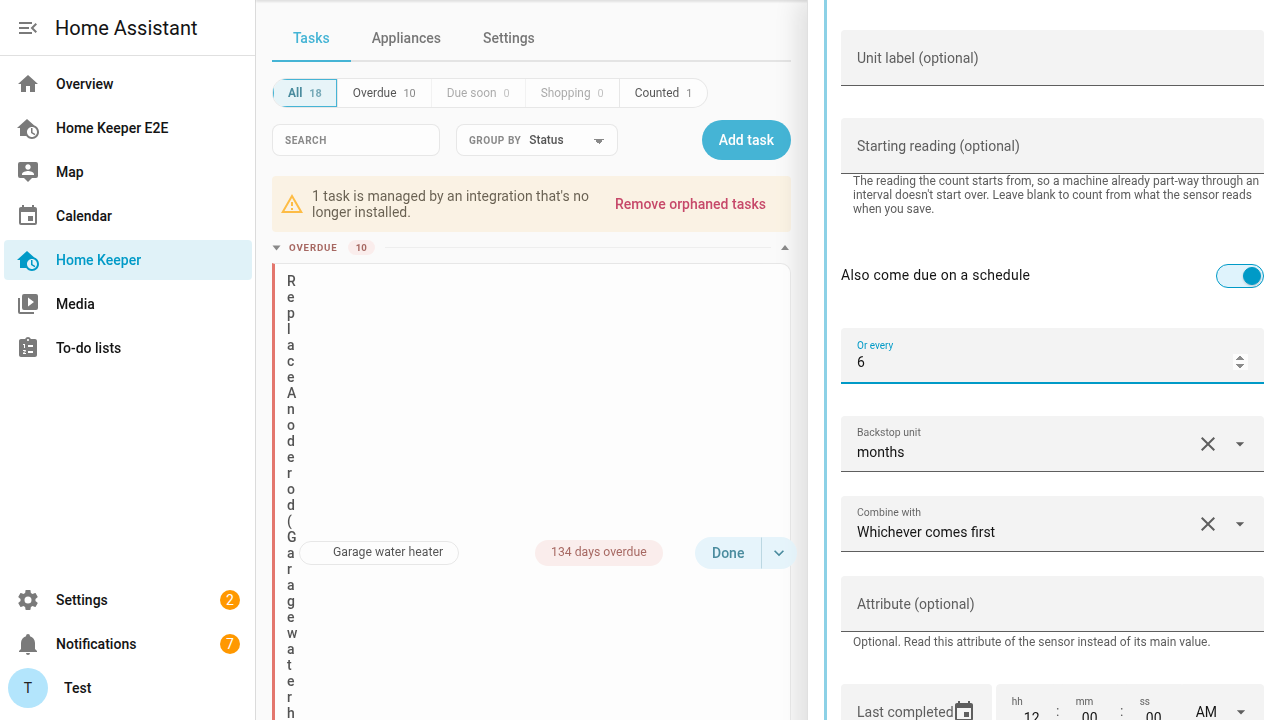
Turn on Also come due on a schedule and set the Or every cadence and unit and a Combine with choice:
- Whichever comes first is the default. The task becomes due when the meter reaches its target or when the cadence elapses.
- Both must be met makes the task due only when both halves are met. An example is a generator that is run at least monthly and serviced after 100 engine hours.
The form shows the resulting rule under When due and updates it as the fields change.
The time half runs from the last completion, or from task creation before the first completion. A completion resets the meter and the time half together. The time half continues while the sensor is unavailable.
Progress. The task detail page shows the remaining usage, such as "180 h to
go". The unit label is prefilled from the sensor and can be changed. The same
figures are attributes of the task's next-due sensor entity: usage_consumed,
usage_remaining, usage_percent, usage_target, usage_unit,
usage_baseline, backstop_due, and last_completion_reading. The entity also
reports the usage between completions: usage_last_interval, usage_avg_interval,
usage_min_interval, and usage_max_interval. These 4 attributes are absent until
2 completions record a reading. The entity exists only for a task attached to a
device.
History. A completion of a sensor task records the sensor reading with the note and cost and photo. Each history row shows the reading and the reading can be edited. The row also shows the usage since the previous completion, such as "+15,400 km". The reading on the most recent completion is the meter anchor, so an edit to it moves the anchor. An older row is a log entry only.
Above the history list, Home Keeper shows the last interval and the average. It also shows the shortest and the longest. If there is only 1 interval, Home Keeper shows that interval alone. A meter reset makes one reading lower than the reading before it, and Home Keeper leaves that pair out.
The completion dialog prefills the reading from the sensor. To back-date a completion, set Completed at and type the reading from that date.
Re-anchor without a completion. The home_keeper.set_task_meter service
re-anchors the baseline of a usage task without a completion record. This is
useful for work done before the task existed or after a meter swap. Omit
baseline to anchor at the current reading.
When a device just tells you
Home Keeper supports a sensor task that is bound to an entity that reports the condition directly. This is useful for hardware with no number to meter, such as:
- a robot vacuum water tank empty state
- a battery sensor that reports
battery_almost_empty - a leak detector
- a filter-needs-replacing flag
Use State mode. Select the entity and the state that arms the task.
- The task arms on the transition into the state and stays armed while the sensor remains in that state. After a completion the task arms again only after the sensor returns to normal and reaches the state again.
- If the sensor is already in the state when Home Assistant starts, the task does not arm again.
- An optional hold ignores short trips, such as a door that must stay open for 10 minutes before the task arms.
- For an entity that is not a binary sensor the state field accepts free text.
Automatic clearing. Turn on Clear when back to normal to complete the task when the sensor returns to normal. A completion is recorded. If the task is linked to a consumable, the automatic completion draws down the part's per-use amount. The switch is off by default.
Difference from problem-sensor sync. The sync creates a task for every
device_class: problemsensor, and these tasks cannot be completed by hand. State mode creates 1 task for any entity and any device class, and the task is completed by hand unless automatic clearing is on.
Link a task to a consumable (auto-reorder)
Home Keeper supports linking a task to a consumable part of an appliance. This is
useful for a task that uses a part kept in stock, such as a water filter. A
completion draws down the part's stock by its per-use amount.
The default is 1 whole part unless the part sets
its own amount. Home Keeper fires a
home_keeper_part_low_stock event when the stock crosses the reorder-at threshold.
The linked task is independent of the auto-generated wear-item tasks and stays
editable.
A sensor-based task can be linked to a consumable. An example is a task bound to a filter-life entity and linked to the filter part. The entity arms the task and a completion draws down the part.
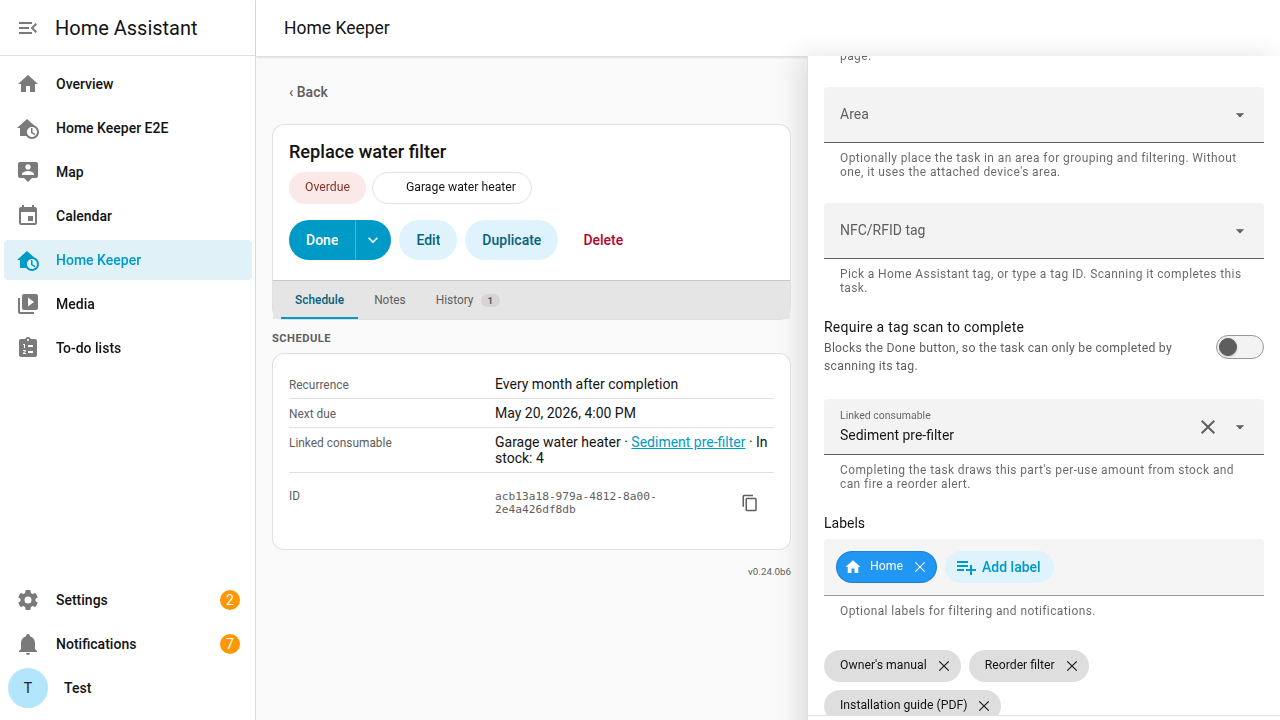
Select the part in the Linked consumable field on the task form. The field lists
the parts of the appliance that the task is attached to with Attach to device.
The field is hidden if the appliance has no consumable parts. The
home_keeper.set_task_consumable service sets the same link. Omit the ids to
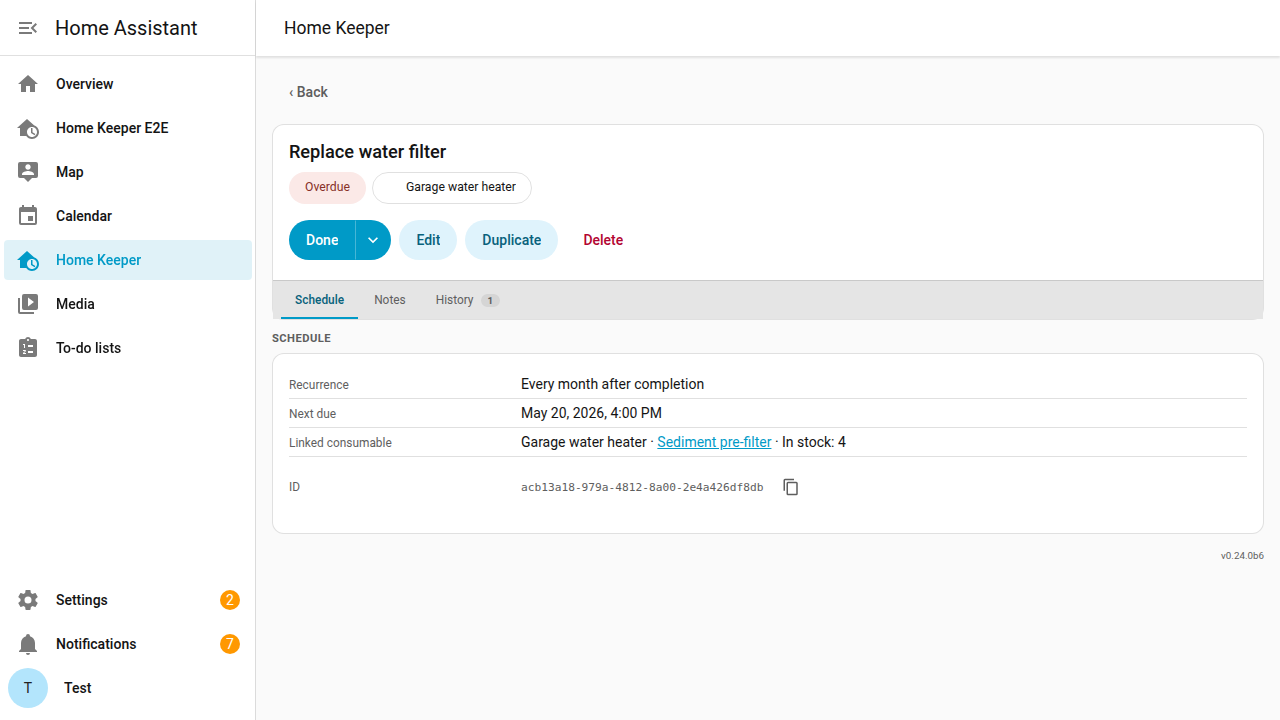
unlink. The task detail shows the linked part and its current stock.