QR code labels
Home Keeper supports QR code labels for appliances and tasks. Each code is a link to the page of its appliance or task in the Home Keeper panel. Print the labels on a label sheet or on a label printer. Put a label on the appliance. Then scan it with a phone camera to open the page in the panel.
The link opens for any user. A user who is not an admin sees a read view of the appliance. To complete a task with a scan, use a Home Assistant tag. See NFC and RFID tags.
Print 1 label
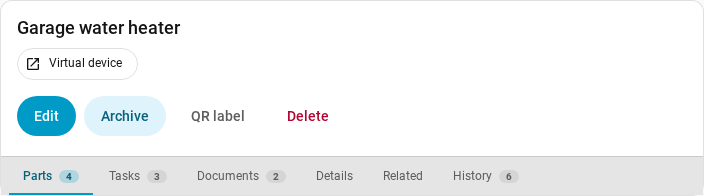
- Open the page of an appliance or a task.
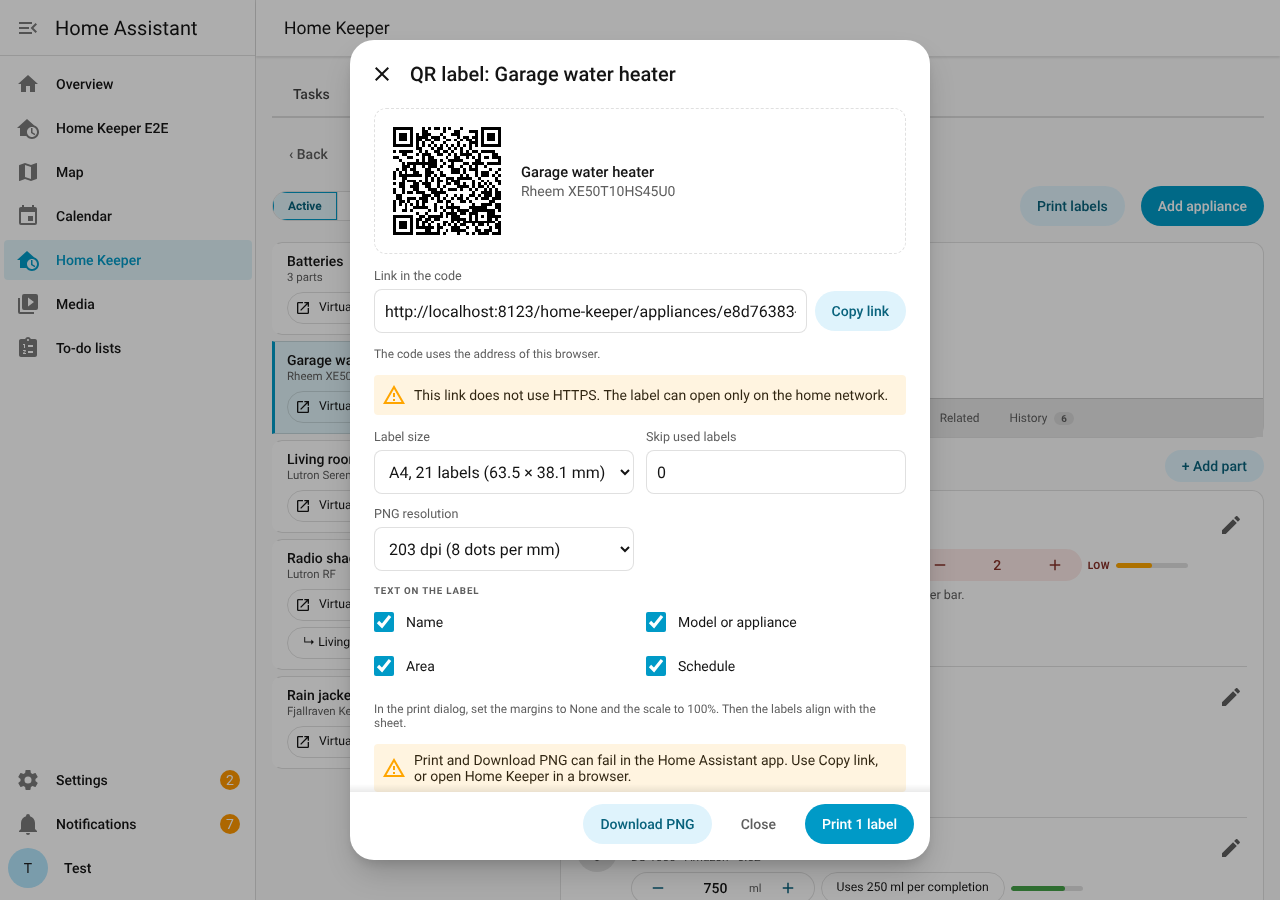
- Select QR label.
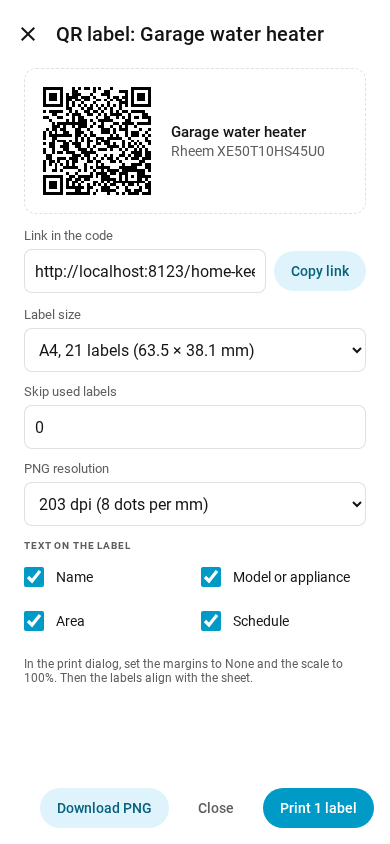
- Optional: change the print settings. See Label sizes and Text on the label.
- Select Print 1 label. The print dialog of the browser opens.
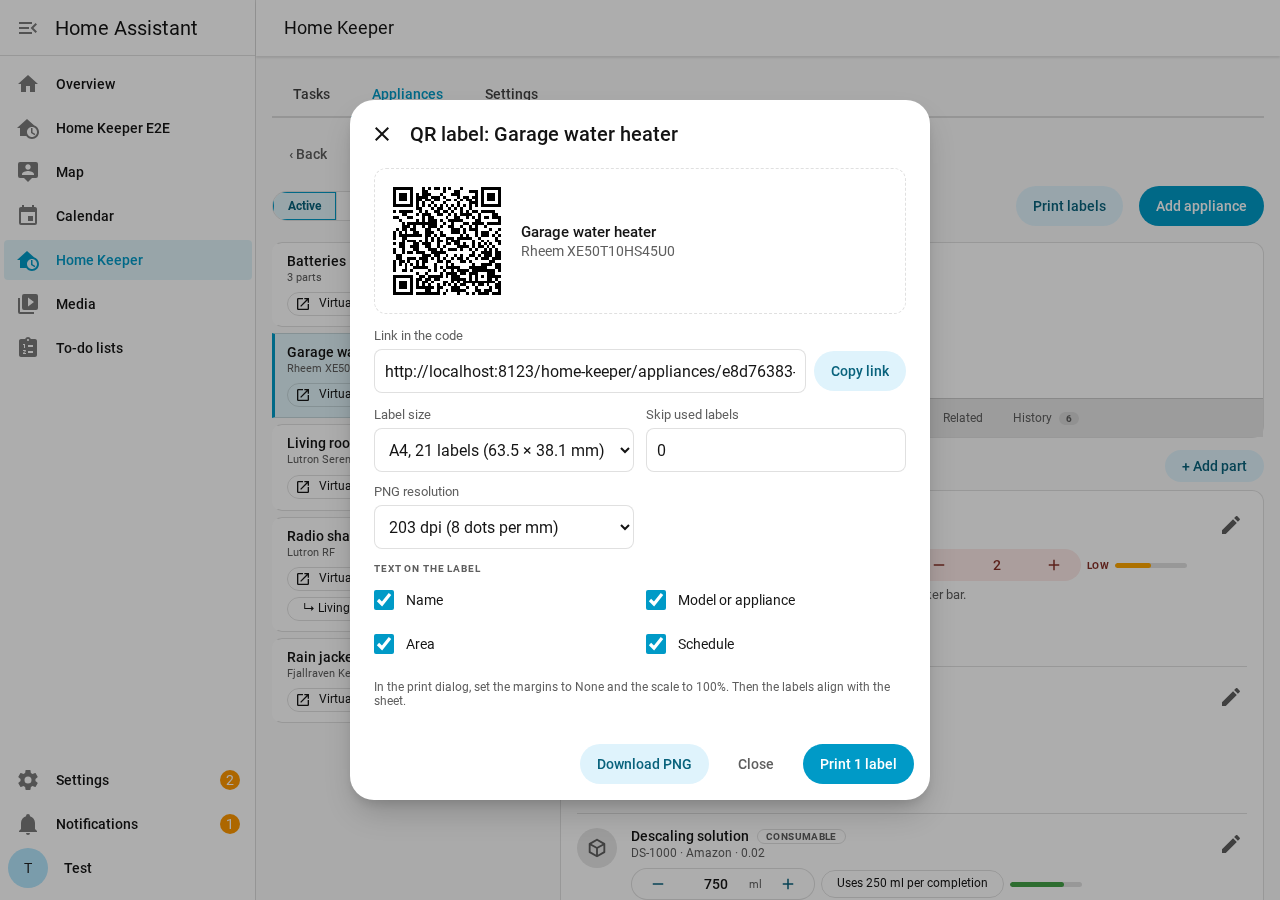
The dialog also has these buttons:
- Copy link copies the link in the code.
- Download PNG saves the whole label, the code and its text, as an image at the label size. See Label printers.
Print many labels
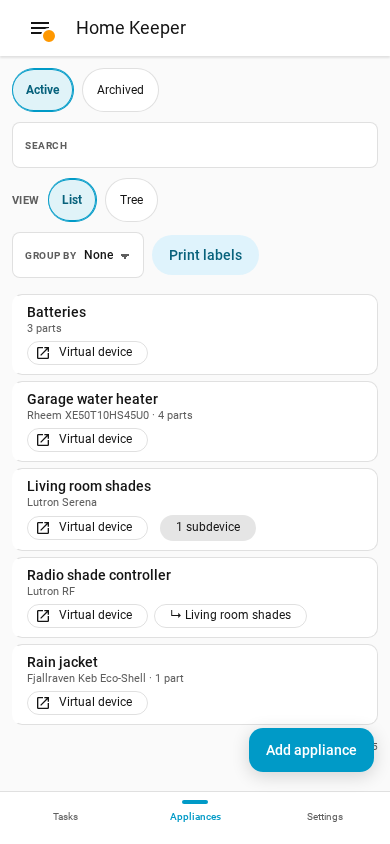
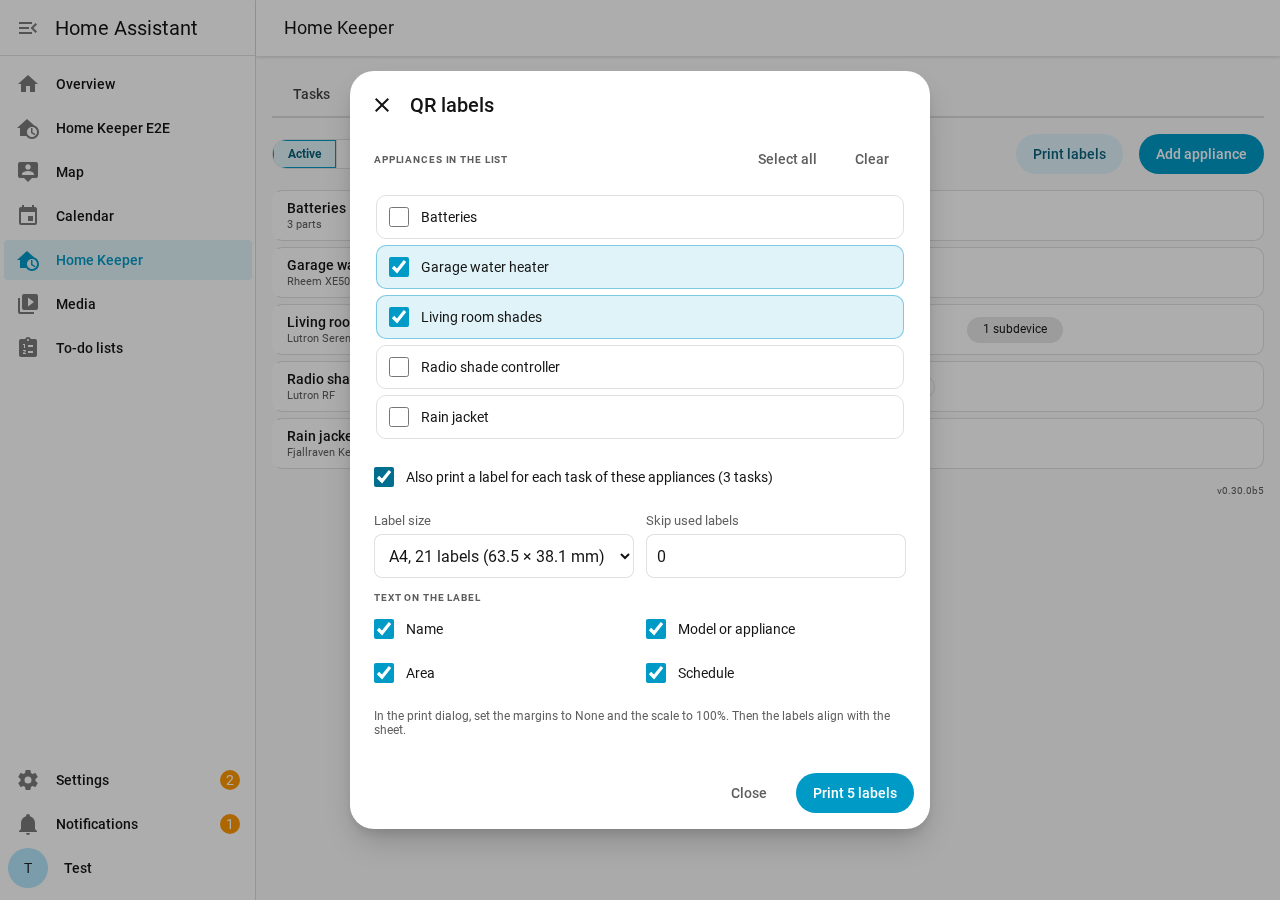
- On the Appliances tab or on the Tasks tab, select Print labels.
- Select the appliances or the tasks to print. Select all selects all of the list.
- Optional: for appliances, select Also print a label for each task of these appliances.
- Select Print. The print dialog of the browser opens.
The dialog shows the same appliances or tasks as the list. To print fewer, type in the Search box before you select Print labels.
Label sizes
Select the size in Label size. Home Keeper prints on label sheets and on the label rolls of label printers.
Label sheets
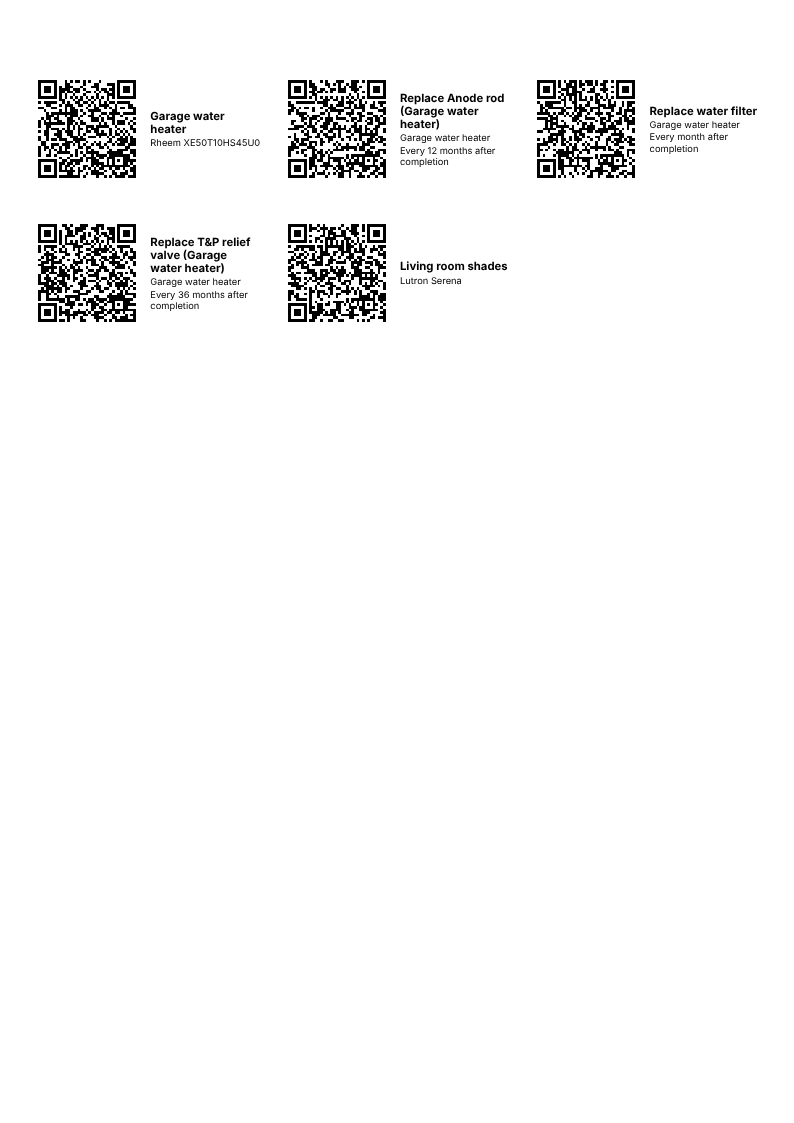
Home Keeper prints on 2 common label sheets:
| Sheet | Labels | Label size | Same layout as |
|---|---|---|---|
| US Letter | 30 | 2⅝ × 1 in | Avery 5160 |
| A4 | 21 | 63.5 × 38.1 mm | Avery L7160 |
The first sheet comes from the country in the Home Assistant settings. The panel keeps your choice of size and text in this browser.
If a sheet is part used, set Skip used labels to the number of used labels. The first label then prints on the next free label.
In the print dialog, do these steps, or the labels do not align with the sheet:
- Set the margins to None.
- Set the scale to 100%.
To make a PDF file, select Save as PDF as the printer.
Label printers
A small label printer, such as a Niimbot B1, prints on a roll of labels. Its app opens an image or a PDF file. Home Keeper makes both at the size of 1 label.
Select 1 of these sizes in Label size:
| Size | Width × height |
|---|---|
| Label roll | 50 × 30 mm |
| Label roll | 40 × 30 mm |
| Label roll | 50 × 20 mm |
| Label roll | 30 × 15 mm |
| Label roll, custom size | You type the width and the height, from 10 to 300 mm |
To make a PDF file:
- Select the size of your labels.
- Select Print. The print dialog of the browser opens.
- Select Save as PDF as the printer. Set the margins to None and the scale to 100%.
- Open the PDF file in the app of your label printer. Each label is 1 page.
To make an image of 1 label:
- Open the QR label dialog of the appliance or the task.
- Select the size of your labels.
- In PNG resolution, select the resolution of your printer. Most small thermal printers use 203 dpi (8 dots per mm). The PNG then has 1 pixel for each dot.
- Select Download PNG. Open the file in the app of your label printer.
Select where the text goes in Text position:
| Text position | Layout |
|---|---|
| Automatic | Next to the code on a wide label. Below the code on a tall label. |
| Beside the code | Next to the code |
| Below the code | Below the code, for a square label such as 24 × 24 mm |
On a label that is too small for the text in that position, Home Keeper prints only the code. The text position applies to the print, the PDF, the PNG and the preview.
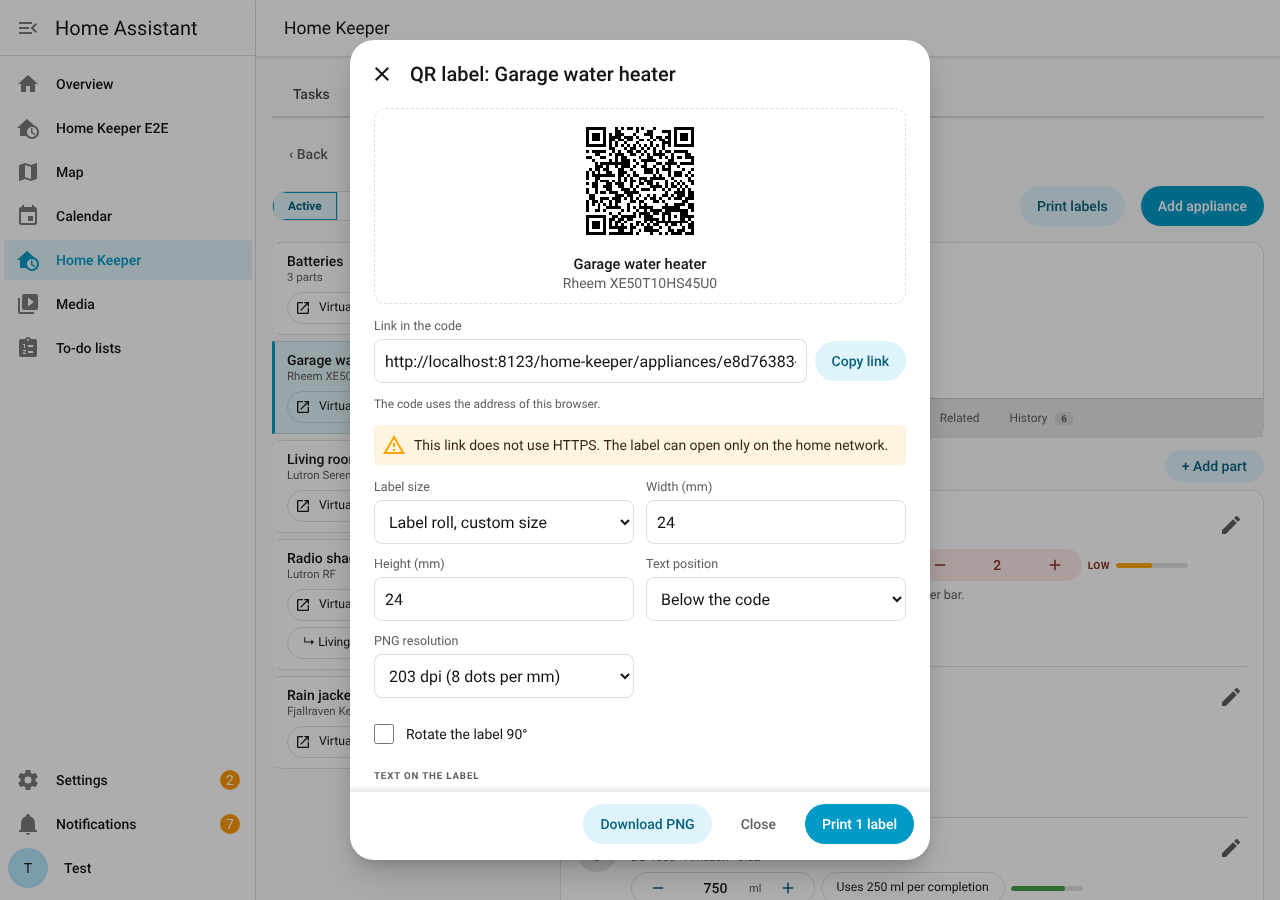
If the label comes out of the printer on its side, select Rotate the label 90°.
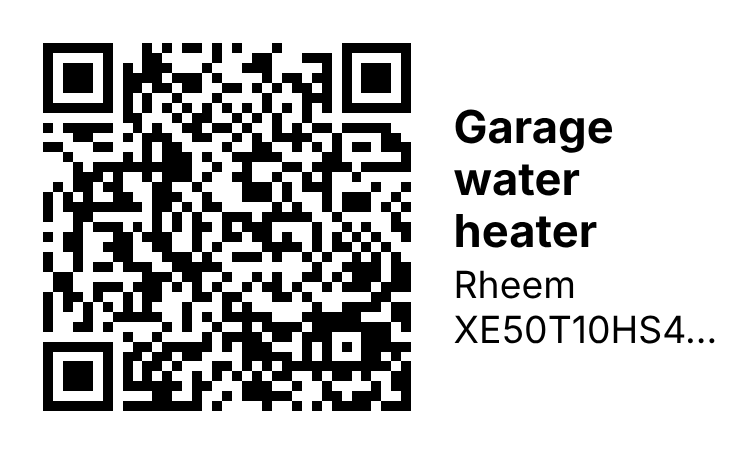
Text on the label
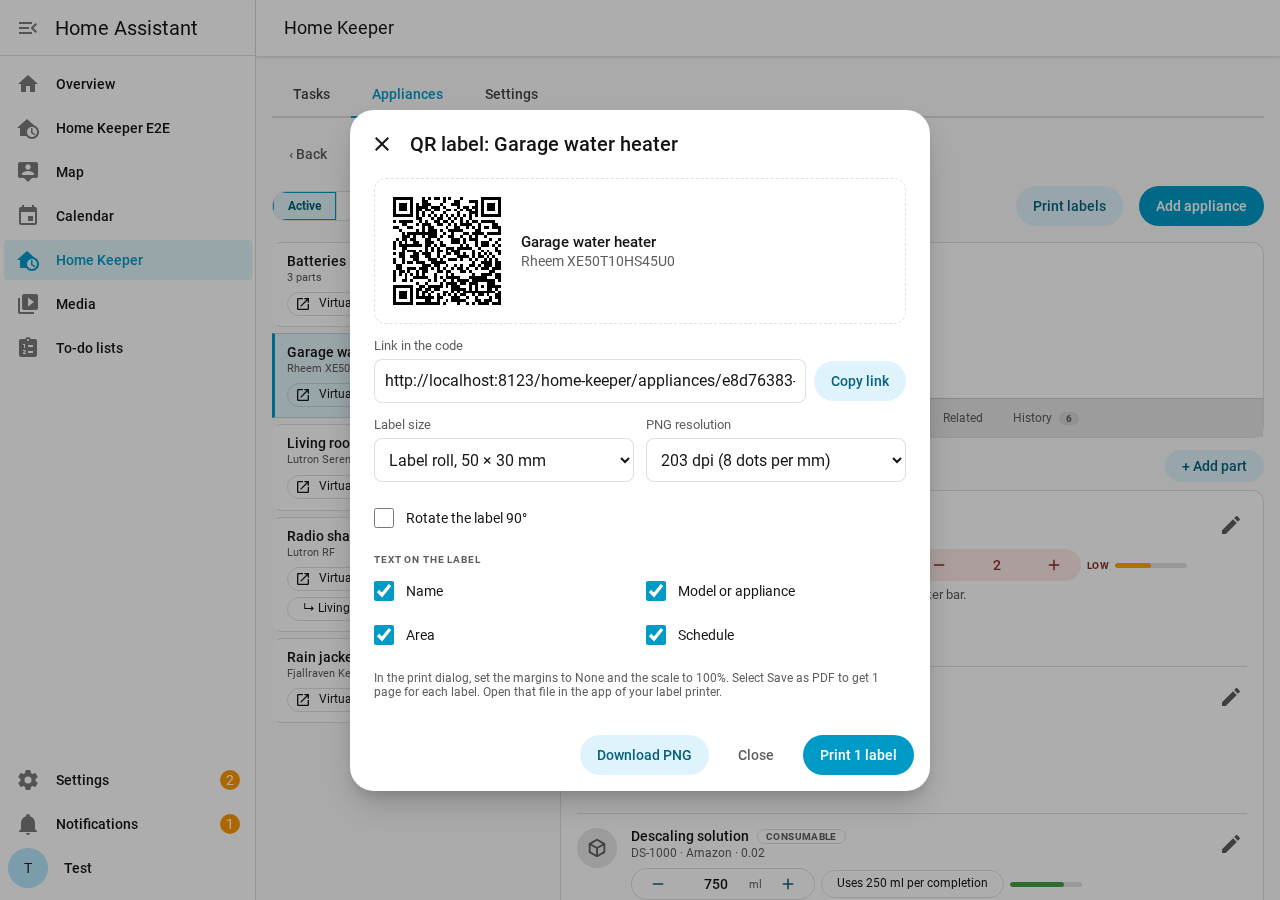
Select the lines to print next to the code:
| Line | Appliance | Task |
|---|---|---|
| Name | Name | Name |
| Model or appliance | Manufacturer and model | Appliance of the task |
| Area | Area | Area of the task, or of its appliance |
| Schedule | None | How the task repeats |
The link
The code holds the external URL of Home Assistant, then the path of the page. For
example: https://ha.example.com/home-keeper/appliances/<id>. If Home Assistant has no
external URL, Home Keeper uses the internal URL or the address of this browser:
- If only 1 of the 2 uses HTTPS, the code holds that address. The address of Home Assistant Cloud uses HTTPS.
- Else the code holds the internal URL.
- If Home Assistant has no internal URL, the code holds the address of this browser.
Under Link in the code, the dialog shows which address the code uses. If that address does not use HTTPS, the dialog warns that the label can open only on the home network.
Set the URLs in Settings → System → Network before you print. If the URL changes later, print the labels again. A label of an appliance or a task that you delete opens a page that tells you so.
Home Assistant app
In the Home Assistant app on iPhone or Android, Print and Download PNG can fail. The dialog shows a warning above these buttons. Do 1 of these steps:
- Select Copy link, and make the label in another app.
- Open Home Keeper in a browser, and print the labels from there.
On a phone